
Welcome to Volnyn
Sign in or create an account to continue
Continue with Google
or
Sign in with email
New here? Create an account
By continuing, you agree to our Terms of Service
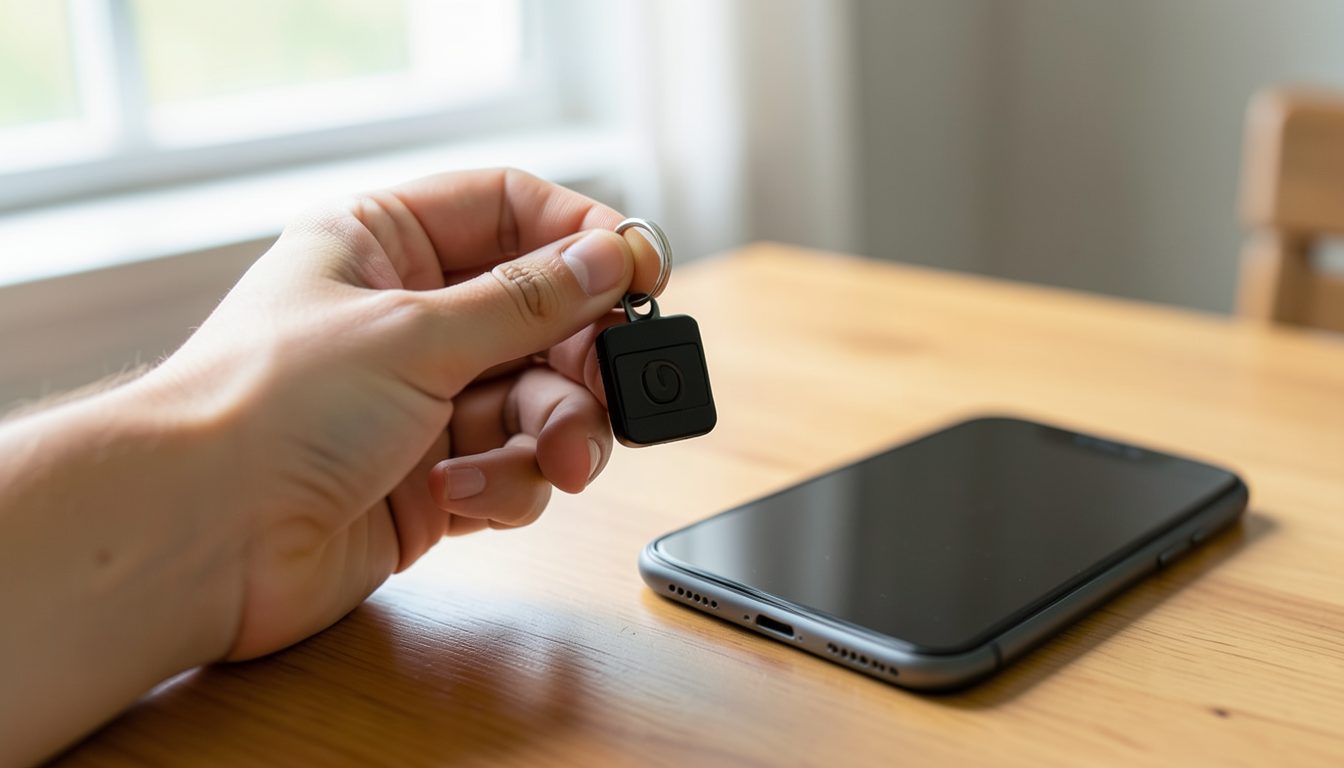
Your business probably runs on dozens of logins: email, bank, payment processor, website, accounting, social accounts and suppliers. If most of them share a few passwords you can remember, one leak from any of those sites can open the rest. Password managers and two-factor sign-in fix most of that, and neither is as complicated as it sounds.
Data breaches at websites are common, and lists of stolen email and password pairs circulate among criminals. Attackers feed those lists into automated tools that try the same combinations on banks, email providers and store platforms. This is called credential stuffing, and it works because people reuse passwords.
The fix isn't a cleverer password. It is a different password for every account, which is impossible to remember without help.
A password manager is an app that stores your logins in an encrypted vault, locked by one strong master password and often your fingerprint or face. It can:
There is a quieter benefit too. A password manager fills a login only on the website it was saved for. If a phishing email sends you to a convincing fake of your bank's site, the manager won't offer your password, which is a useful warning sign.
For a business, choose a manager with team features: shared vaults for logins several people need, and the ability to remove someone's access in one step when they leave. That beats a spreadsheet of passwords or a note stuck to the monitor.
Your master password is the one you must remember, so make it a long passphrase of several unrelated words rather than a short jumble of symbols. Modern security guidance favors length over complexity and no longer recommends forcing regular password changes unless there is a sign a password has leaked.
Two-factor authentication, often called 2FA or multi-factor authentication, means signing in takes something you know, your password, plus something you have, usually your phone or a physical key. Even if someone steals your password, they can't get in without the second factor. Not every method is equally strong:
| Method | How it works | How strong |
|---|---|---|
| Text message codes | A code is sent to your phone number | Better than nothing, but numbers can be hijacked through SIM swapping |
| Authenticator app | An app on your phone shows a short code that changes every few seconds | Good, and not tied to your phone number |
| Push approval | Your phone asks whether this sign-in is you, and you tap to approve | Good, as long as you never approve a request you didn't start |
| Passkey or security key | Your device or a small physical key proves who you are to the real website | Strongest, because it resists phishing |
Passkeys are a newer way to sign in that many major services now support. Instead of typing a password, you unlock your phone or computer with your fingerprint, face or PIN, and the device proves who you are. Because a passkey only works on the genuine website, a fake login page can't capture it. Where a service offers passkeys, they are worth turning on.
Don't try to fix every account in one sitting. Work in order of potential damage:
When you turn on two-factor sign-in, the service usually gives you a set of backup codes. Save them in your password manager or print them and store them somewhere safe. They are your way back in if you lose your phone.
Start today with one step: install a password manager, give your main email account a new unique password and two-factor sign-in, and save the backup codes. Everything else gets easier from there.