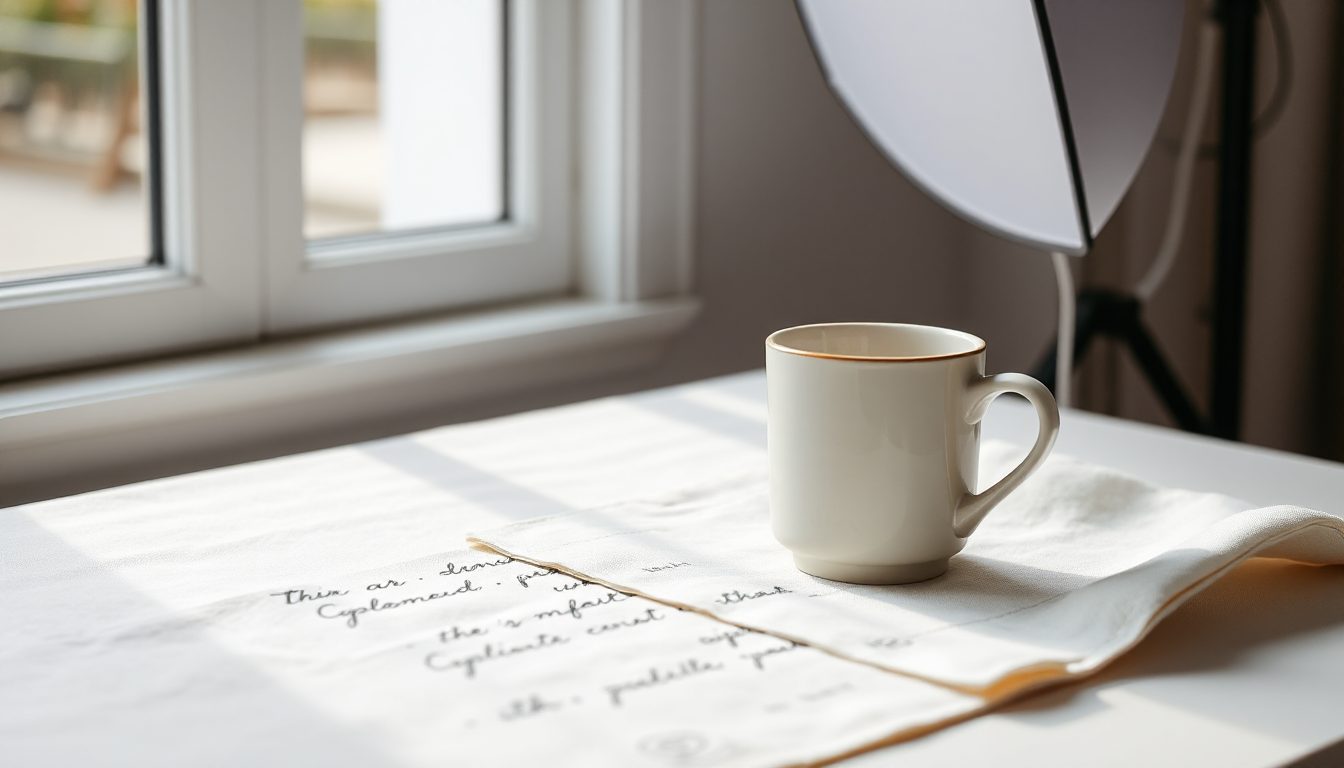
Good product photos sell. Studio shoots are expensive, and phone photos on the kitchen table rarely look like the brands you compete with. An AI image generator sits in between: describe the shot you want and get it in seconds.
The difference between a usable image and a great one is almost always the prompt. Here's how to write prompts that produce product photos you can put on your shop, website and social feeds.
The product photo prompt formula
A reliable prompt answers five questions, in this order:
- Subject — what the product is, with material and colour: "a matte black ceramic coffee mug".
- Setting — where it sits: "on a light oak table", "on a white seamless backdrop", "on wet river stones".
- Lighting — "soft morning window light", "bright even studio light", "warm golden hour light".
- Camera — "close-up", "top-down flat lay", "eye-level", "shallow depth of field".
- Mood and style — "clean and minimal", "cosy and warm", "premium and dramatic".
Put together: "A matte black ceramic coffee mug on a light oak table, soft morning window light from the left, eye-level close-up with shallow depth of field, clean minimal style, neutral background."
Words that consistently help
Lighting
- Soft diffused light — flattering, few harsh shadows, good for most products.
- Studio lighting on a white background — classic shop listing look.
- Golden hour — warm and lifestyle-friendly.
- Dramatic side lighting — premium feel for watches, perfume, spirits.
Backgrounds
- Seamless white or light grey — marketplace-friendly.
- Natural textures — marble, linen, wood, stone, for handmade and natural products.
- Lifestyle scenes — a kitchen counter, a bathroom shelf, a picnic blanket, to show the product in use.
Composition
- Flat lay / top-down — great for sets, cosmetics, stationery, food.
- Three-quarter angle — shows shape and depth.
- Negative space on the right — leaves room for text on a banner.
Ready-to-use prompt examples
Skincare: "A frosted glass serum bottle with a gold dropper on a pale pink marble surface, a few drops of water around it, soft diffused daylight, top-down view, clean luxurious style."
Candles: "A lit soy candle in an amber glass jar on a wooden bedside table, cosy bedroom blurred in the background, warm evening light, eye-level, shallow depth of field."
Sneakers: "A white leather running shoe floating slightly above a concrete surface, dramatic side lighting, dark grey background, three-quarter angle, sharp detail on the stitching."
Food: "A stack of three fluffy pancakes with fresh blueberries and maple syrup dripping, on a white ceramic plate, rustic wooden table, morning window light, 45-degree angle."
Jewellery: "A thin gold necklace with a small pearl pendant draped over a smooth beige stone, soft studio light, macro close-up, elegant minimal style."
Choose the right size before you generate
Volnyn's image generator lets you pick the frame up front, and it keeps to it:
- 1:1 square — shop listings and Instagram feed posts.
- 4:3 or 3:4 — product pages and Pinterest-style layouts.
- 16:9 wide — website hero banners and YouTube thumbnails.
- 9:16 tall — Stories, Reels covers and mobile ads.
Generating at the right ratio is better than cropping later, because the composition is built for the frame.
Keep a consistent look across your shop
A shop where every photo looks different feels messy. To keep a consistent style:
- Write one "style sentence" and reuse it at the end of every prompt, for example "soft diffused daylight, light oak surface, clean minimal style".
- Keep the same background and angle for products in the same category.
- Change only the subject between prompts.
Be honest about what the product looks like
AI is excellent for lifestyle scenes, backgrounds, banners and mood images. For the main photo of a specific item you sell, make sure the image accurately shows the real product's colour, shape and details. Customers who receive something different from the photo return it and leave bad reviews. A good approach is: real photo for the main listing image, AI images for lifestyle, banners and social posts.
Common mistakes
- Too vague: "a nice photo of a bag" gives you a random bag. Name the material, colour and style.
- Asking for text in the image: add your text afterwards in the website editor for clean, readable results.
- Too many objects: one hero product plus one or two props is usually enough.
- Ignoring the background: the background sets the price perception. Marble and soft light say premium; clutter says bargain bin.
Try it on your products
Volnyn's AI image generator creates images straight inside your dashboard and drops them into your website without downloading and re-uploading. New accounts start with free credits. Create your free account and generate your first product shots today.