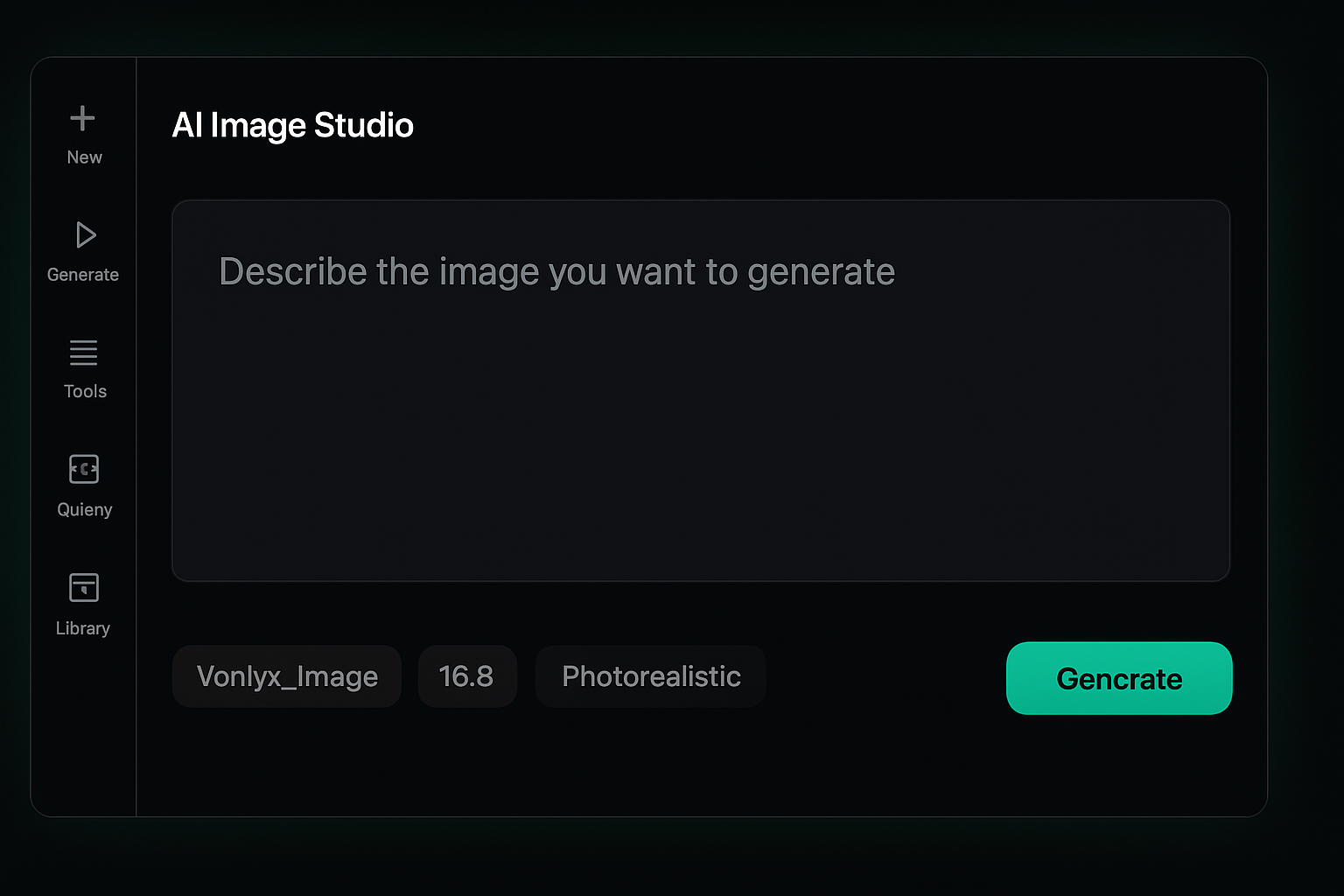
AI Image Studio (/user/ai-image) is Volnyn's dedicated workspace for text-to-image generation and quick edits. Pick a model, describe what you want, tune aspect ratio and style, then iterate — the same creative loop Runway uses for still frames before video.
Credits apply per image generated. Multiple variations in one request each cost separately.
Step 1 — Open the studio
- Sign in and open AI Image Studio from the dashboard or go to
/user/ai-image. - The left rail switches between Generate, Tools, Gallery, and Library without leaving the page.
- Type your prompt in the composer card, or click Ideas for a sample prompt.
What the studio includes
| Area | Purpose |
|---|---|
| Generate | Text-to-image from your prompt |
| Tools | Edit, clarify, or refine an existing image |
| Gallery | Inspiration examples to jump-start a prompt |
| Library | Your saved generations — download or animate to video |
Step 2 — Draft the prompt
Write what you want to see, not how to render it technically:
- Subject — who or what is in the frame
- Setting — location, time of day, mood
- Composition — close-up, wide shot, overhead
- Lighting — soft window light, neon, golden hour
Good: “Product hero shot of wireless earbuds on white marble, soft studio light, shallow depth of field.”
Less useful: “high quality 8k masterpiece trending on artstation” (style words alone rarely help).
The default Volnyn Image model uses your platform OpenAI image key (gpt-image-1). Seedream and Grok Imagine are optional alternatives in the model menu.
Step 3 — Configure settings
Click the chips below the prompt before you generate:
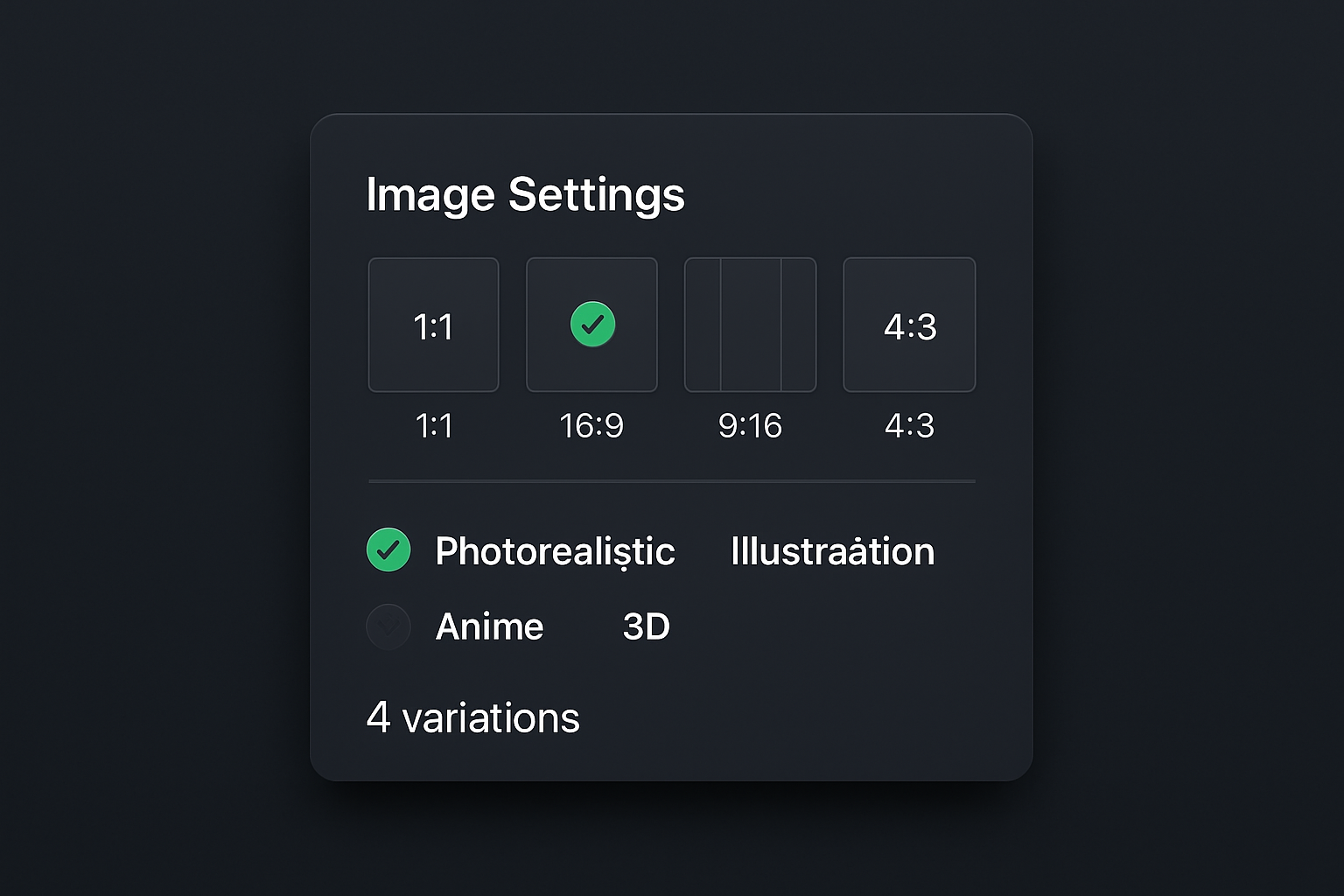
| Setting | Options | Notes |
|---|---|---|
| Model | Volnyn Image, Seedream, Grok Imagine | Image mode only |
| Aspect ratio | 1:1, 16:9, 9:16, 4:3, 3:4 | Match your final use (social, slide, poster) |
| Style | Auto, Photorealistic, Illustration, Anime, 3D, … | Steers look without rewriting the prompt |
| Count | 1–4 variations | Each variation spends credits |
Step 4 — Generate and iterate
Click Generate. Results appear in a grid when ready.
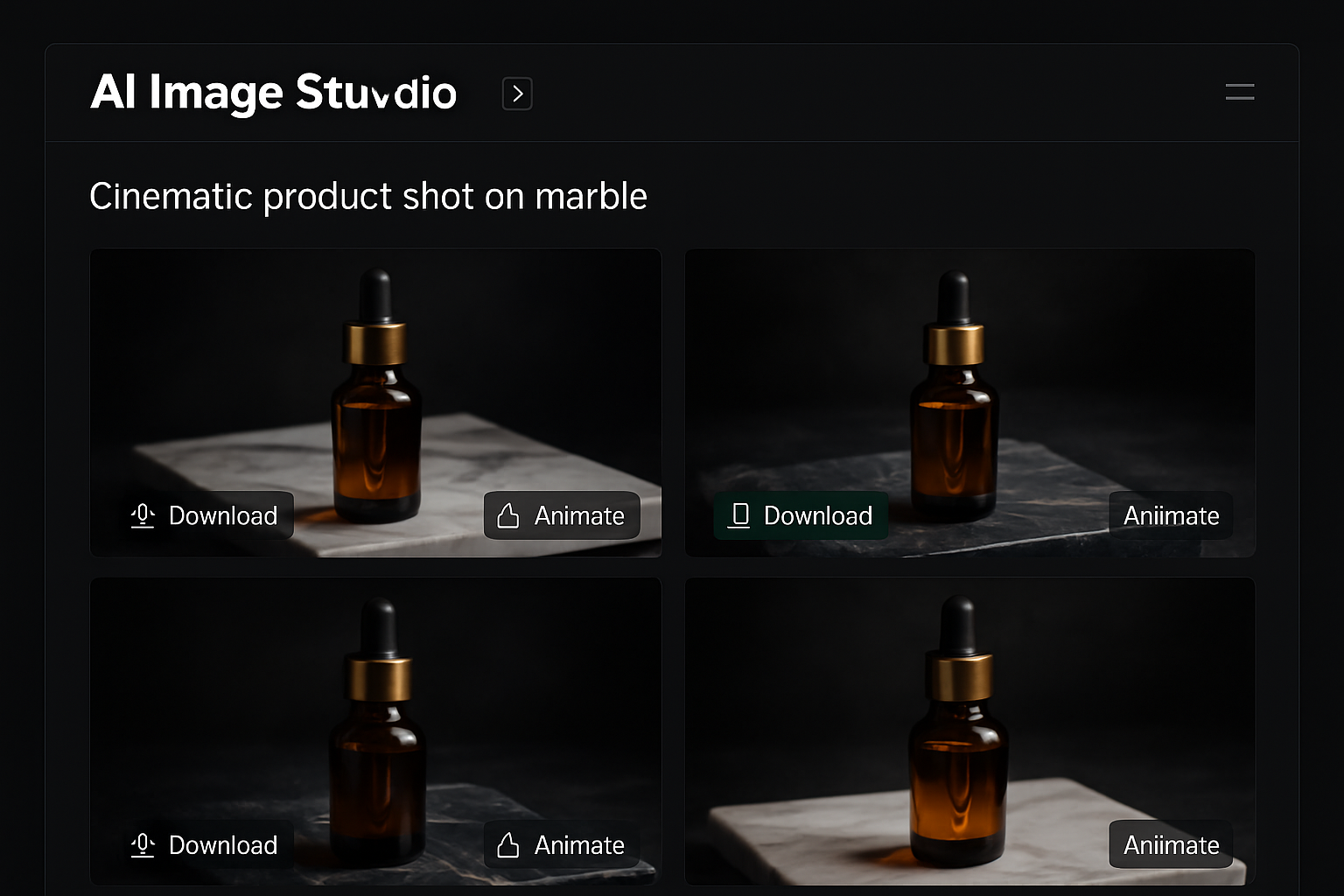
From each result you can:
- Download the PNG
- Animate — hand off to video mode with this frame as the first shot (see Creating with AI Video)
- Edit — open Tools to inpaint or clarify a region
If a result is close but not perfect, change one thing at a time (prompt detail, style, or ratio) and regenerate. Changing three settings at once makes it hard to learn what helped.
Step 5 — Edit with Tools
Switch to Tools in the left rail to:
- Upload an image and describe what to change
- Use clarify flows for small fixes
- Save edited outputs back to Library
Edits use the same credit rules as new generations.
Image → Video workflow
Runway's image-to-video flow has a direct equivalent in Volnyn:
- Generate or pick an image in Library
- Click Animate (or switch the model chip to a video model)
- Write a motion prompt — camera move, action, tempo — not a repeat of what's already in the frame
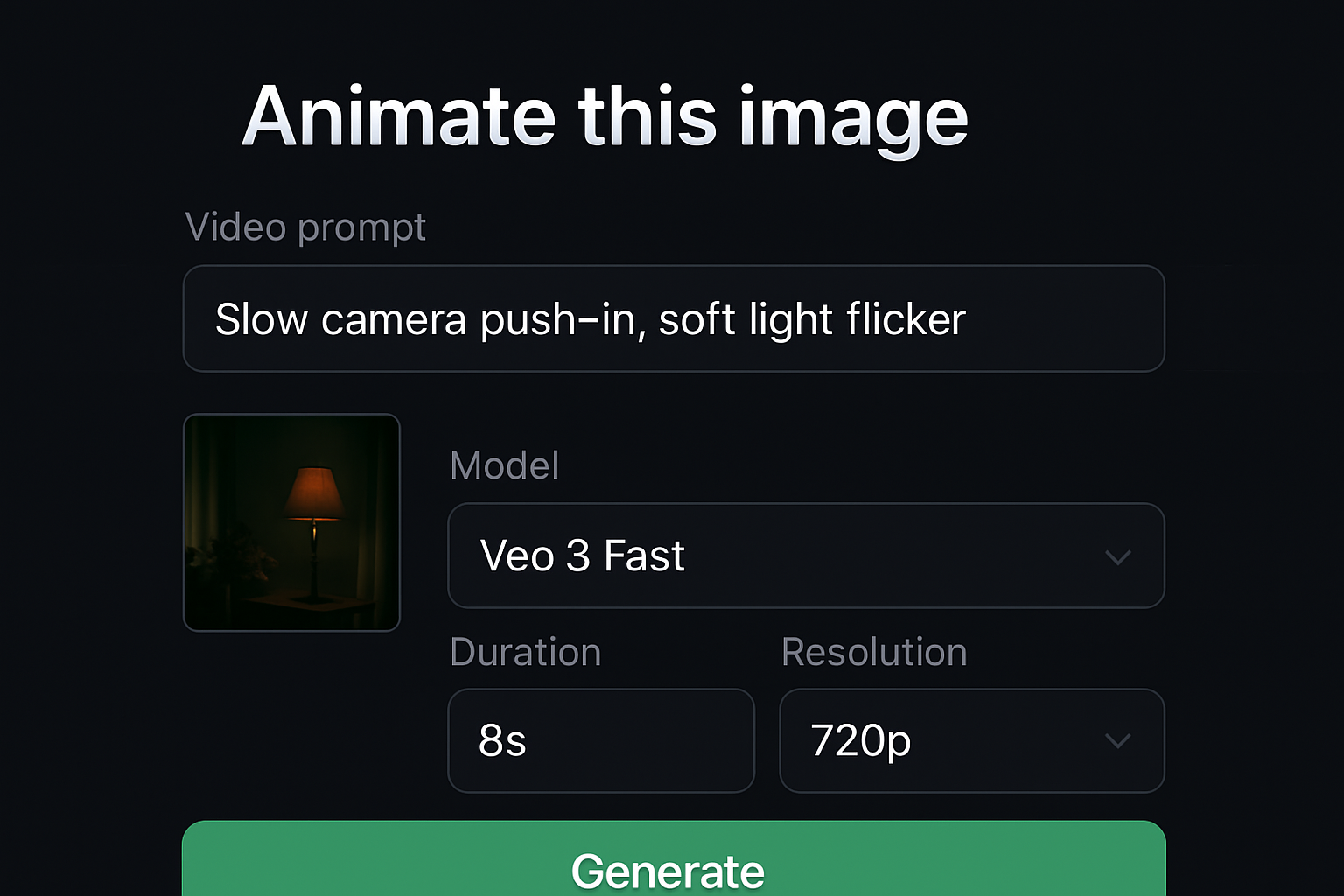
See Creating with AI Video for duration, resolution, and model details.
Credits and troubleshooting
- Each image generation deducts credits (see Usage & Billing).
- 402 / insufficient credits — upgrade or wait for daily refresh.
- Blurry or off-brand results — tighten the prompt, try Photorealistic vs Illustration, or switch model.
Related articles
Still need help?
Open Get help in your account menu, or submit a request from /user/support while signed in.