
Volnyn generates short AI video clips from a text prompt, an uploaded still, or a frame you just created in AI Image Studio. Video lives in the same studio as images (/user/ai-image) — switch the model chip from an image model to a video model, or open /user/ai-video?prompt=… (redirects with video mode pre-selected).
This guide follows the same structure as Runway's Creating with Gen-4 Video and Getting Started with Generative Video articles: draft a prompt, configure settings, generate, iterate.
What Volnyn video can do
- Text to video — describe scene + motion; no image required (model-dependent)
- Image to video — your still is the first frame; the prompt describes motion
- Extend / chain — build longer sequences by using the last frame of one clip as input to the next
- Library — saved MP4s at
/user/ai-videos(also reachable from the studio rail)
Typical wait time: 30 seconds to 2 minutes depending on model and queue. The page polls until your clip is ready.
Step 1 — Start in video mode
- Open AI Image Studio (logged in).
- Open the Model chip and choose a video model, for example:
- Veo 3 Fast — faster, good quality (Google Gemini API)
- Veo 3 — highest quality Veo tier
- Veo 3 Lite — lower credit tier
- Seedance 2.5, Wan 3.0, LTX-2.5, Grok Imagine Video — fal-hosted alternatives
- Or bookmark
/user/ai-video?prompt=Your+ideato land in video mode directly.
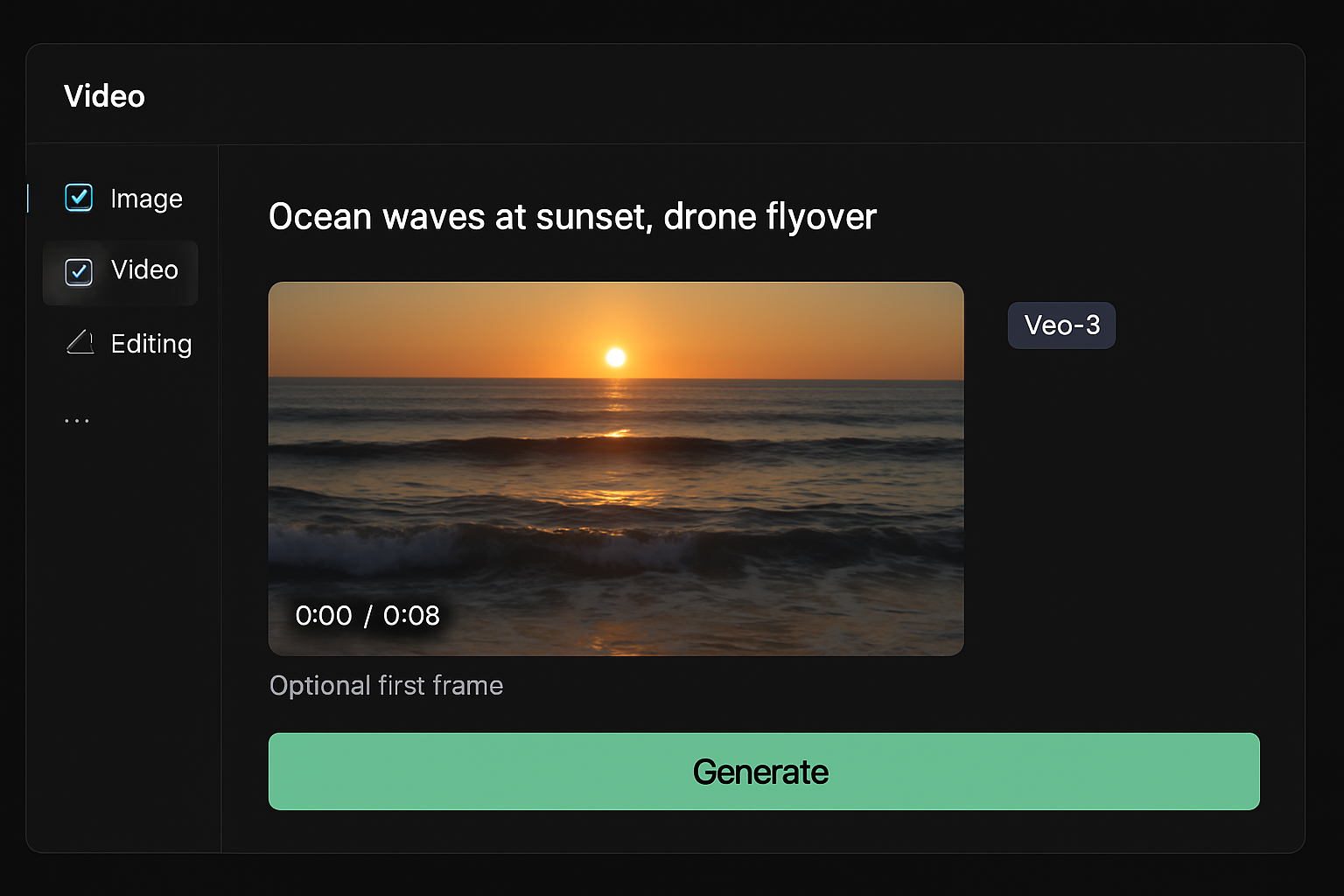
Step 2 — Draft the prompt
Text to video
Describe what you see and how it moves:
“Aerial drone shot over misty pine forest at dawn, slow forward glide, sun rays breaking through trees.”
Image to video
When you attach a still (upload, Library pick, or Animate from an image result), the image already defines subject, color, and composition. Your prompt should focus on motion and camera:
“Slow push-in, subject turns head slightly, soft bokeh in background.”
Do not re-describe everything visible in the frame — that fights the model.
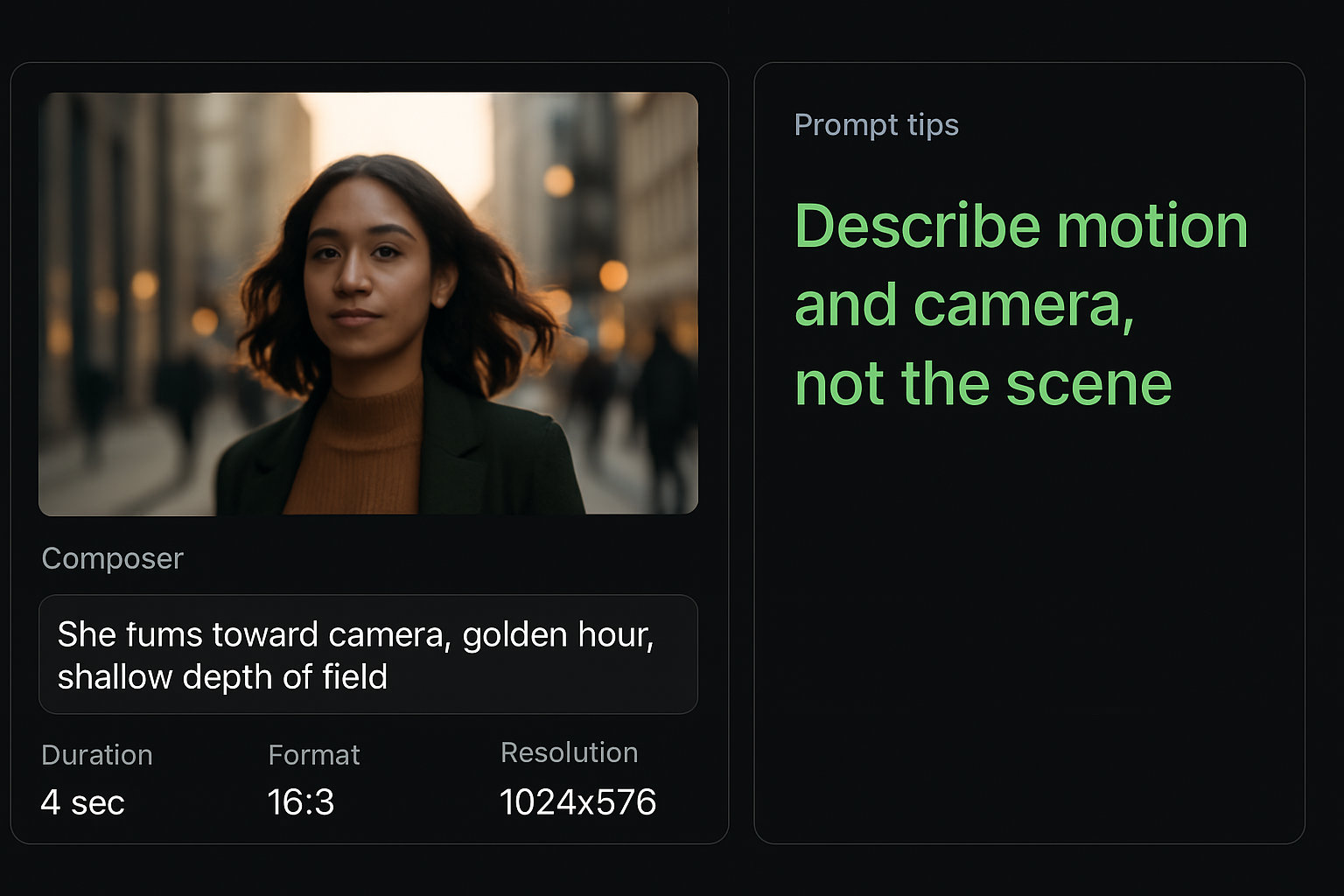
Prompt tips (Runway-style)
- Use camera verbs: push in, pan left, orbit, handheld, static
- Use temporal order: “first… then… finally…” for multi-beat motion
- Keep clips short in language — you are generating 4–20 seconds, not a feature film
Step 3 — Configure settings
Before Generate, set the chips for your target platform:
| Setting | Typical values | Notes |
|---|---|---|
| Aspect ratio | 16:9, 9:16, 1:1, 4:3 | 9:16 for Reels/TikTok; 16:9 for YouTube |
| Duration | 4–20 seconds | Depends on model (Veo vs Seedance caps differ) |
| Resolution | 480p, 720p, 1080p+ | Higher resolution costs more credits/time |
| Reference image | Optional upload or Library id | Required for strongest image-to-video control |
Credit cost shows implicitly when generation starts — failed jobs that never begin usually do not charge; check Usage & Billing if something looks wrong.
Step 4 — Generate and wait
Click Generate. The studio shows a progress state while the provider renders your clip.
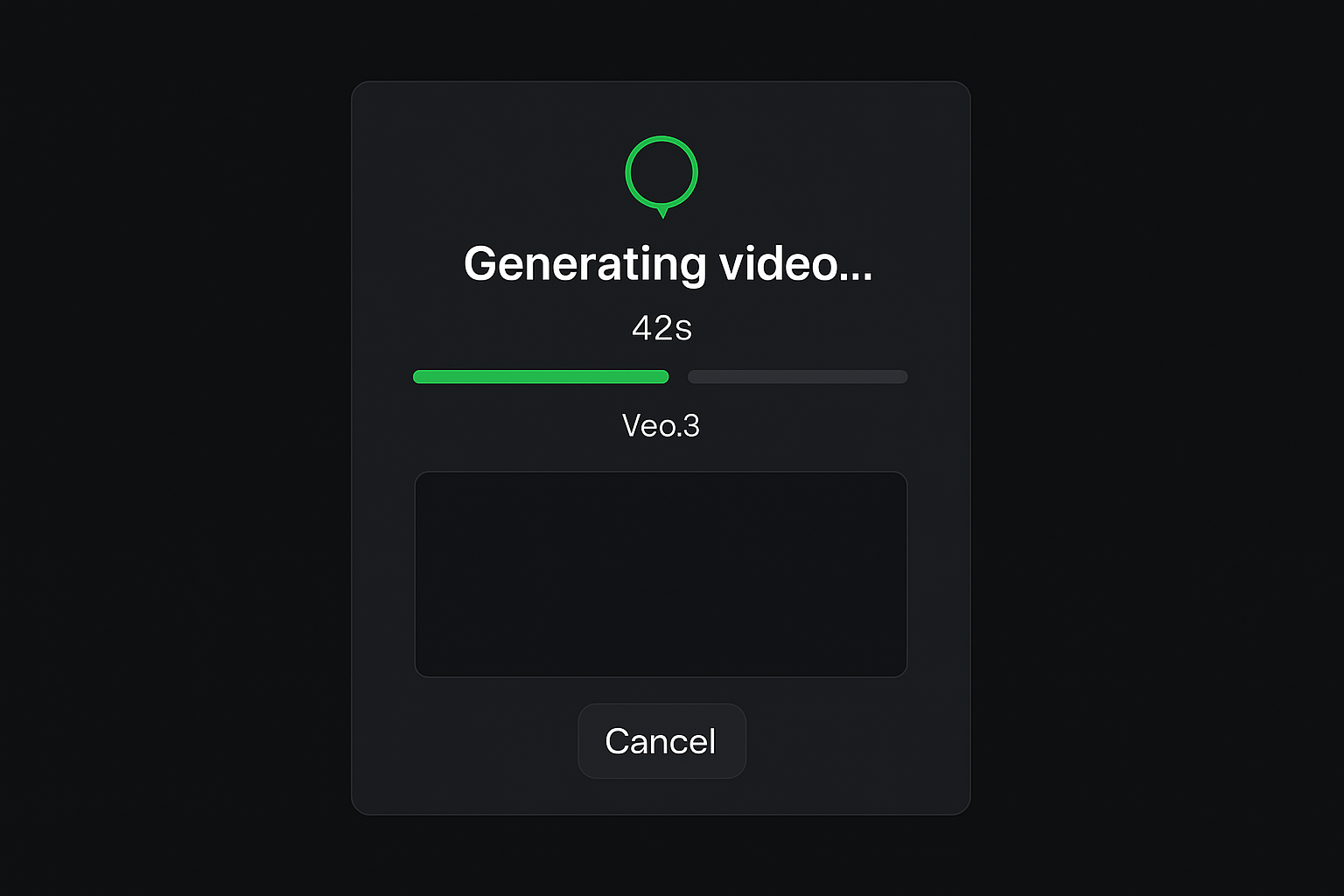
Rules while a clip is running:
- Up to 3 pending videos per account at once — wait for one to finish before starting many more
- Do not refresh aggressively; the client polls
/ai-video/status/{id}automatically - Clips are downloaded to Volnyn storage when ready (provider URLs expire quickly)
Step 5 — Review, download, iterate
When complete, the player shows your MP4 with actions to download, rename, or delete.
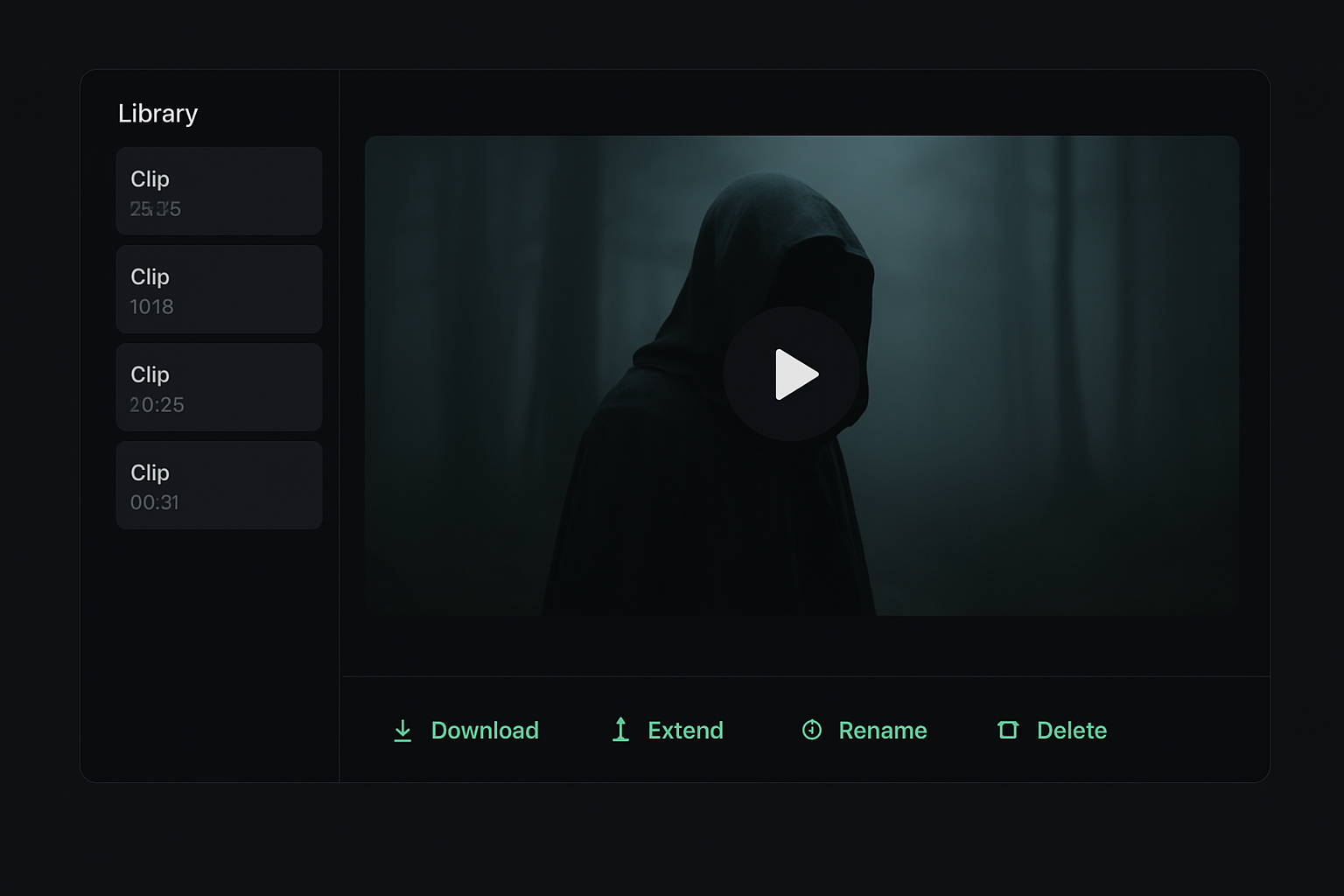
To improve a clip:
- Note the one problem (too fast, wrong camera, artifact on hands)
- Adjust only the prompt line that controls that (usually motion or camera)
- Regenerate — or extract the last frame and run image to video again for continuity
For longer stories, chain clips: export frame → new prompt → new clip → edit together in your NLE.
Models at a glance
| Model family | Best for |
|---|---|
| Veo 3.x | General cinematic text/image-to-video |
| Seedance 2.5 | ByteDance path; check duration/resolution caps |
| Wan 3.0 | Alternative motion styles |
| LTX-2.5 Fast | Quick drafts |
| Grok Imagine Video | xAI video path via fal |
Switch models from the same chip menu — no separate app install.
Troubleshooting
| Issue | What to try |
|---|---|
| “Already have 3 videos generating” | Wait for a pending job to finish |
| 402 insufficient credits | Add credits or use a lighter model (Veo Lite) |
| Motion ignores the image | Shorten prompt to only motion/camera |
| Wrong aspect | Set ratio before generate; re-crop may be needed |
See also Why can't I generate a video? and Video resolution FAQ.
Related articles
Still need help?
Open Get help in your account menu, or submit a request from /user/support while signed in.