
Welcome to Volnyn
Sign in or create an account to continue
Continue with Google
or
Sign in with email
New here? Create an account
By continuing, you agree to our Terms of Service
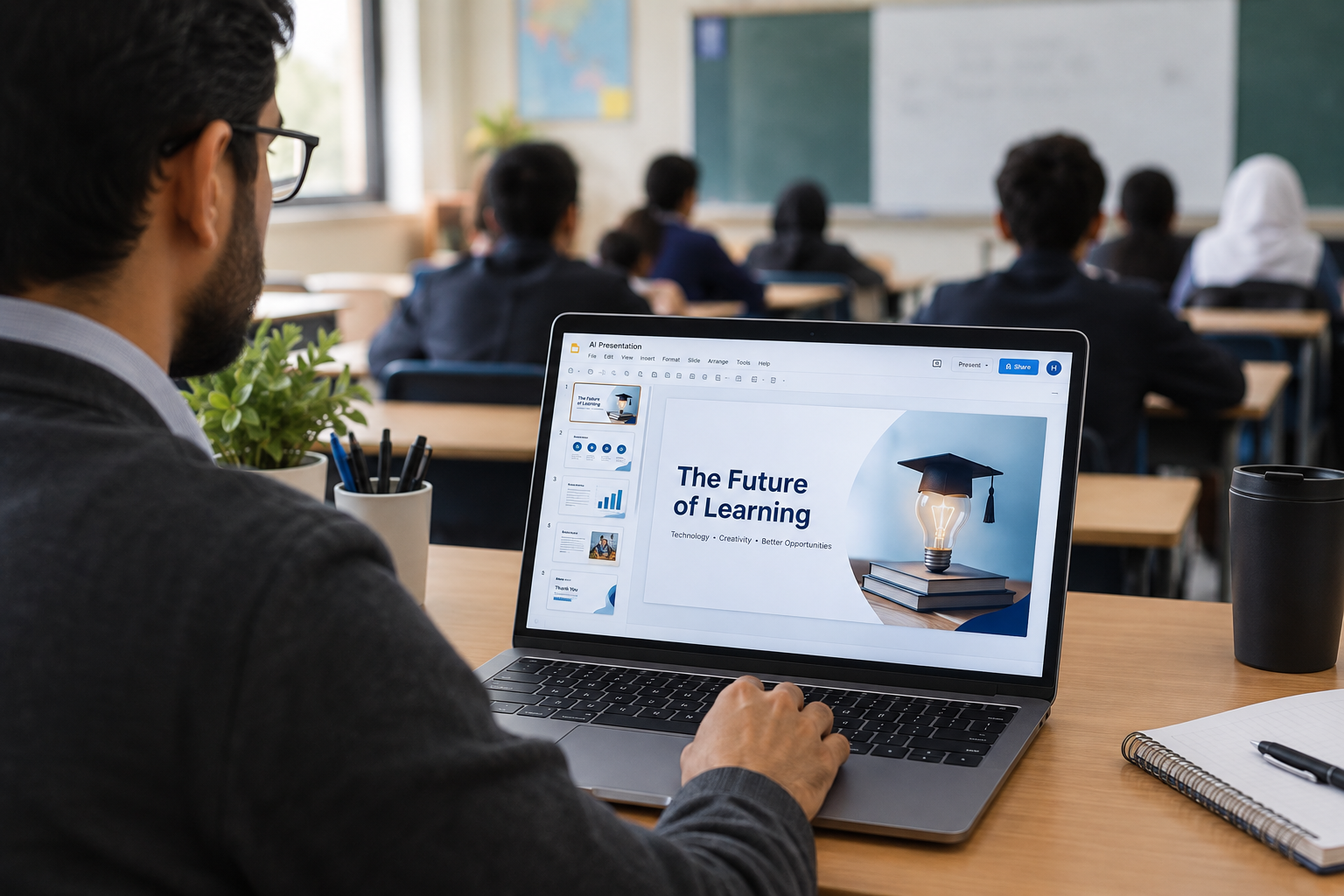
It's 9 PM, the grading pile isn't shrinking, and tomorrow's lesson still needs slides. That's the exact moment most teachers start searching for an AI presentation maker — something that turns a topic or a stack of notes into usable slides without another hour lost to font choices and clip art.
The honest answer is: yes, AI presentation tools can genuinely help here, but "AI presentation maker for teachers" actually covers two different kinds of products, and picking the wrong one wastes more time than it saves.
If your bottleneck is content and structure — turning a topic or a set of notes into a logical slide flow — an AI presentation maker solves a real problem. It won't replace lesson planning or grade-level judgment, and it won't know your standards or your students. What it's good for is the part that eats time without adding teaching value: building the visual shell, writing a first draft of slide copy, and giving you something editable instead of a blank canvas.
Before picking a tool, it helps to separate what actually matters for school use from generic "AI presentation maker" marketing copy:
Can it start from what you already have? A lesson plan, a PDF, or a set of notes is faster to turn into slides than typing a prompt from scratch.
Is the output actually editable? A deck you can't easily tweak per-class or per-period isn't useful for teaching.
Does it export where you need it? PowerPoint (PPTX) and Google Slides compatibility matter more than any AI feature if your school runs on one of them.
Does it fit a free-to-try budget? Most teachers are testing this on their own time and their own dime — a usable free tier matters.
Does the vendor say anything about student data? If you plan to upload student work or class rosters (rather than just lesson topics), check the provider's privacy documentation before you do — this varies by tool and isn't something to assume.
This is the distinction most "best AI tools for teachers" articles blur together, and it's worth being direct about it:
Education-specific platforms (tools like MagicSchool) are built around curriculum features — standards alignment, grade-level targeting, rubric integration. If your district requires that kind of alignment baked into the tool itself, a dedicated ed-tech platform is likely the better fit, and it's worth evaluating one directly against your school's requirements.
General-purpose AI presentation tools (Canva, Gamma, and Volnyn's AI presentation maker among them) aren't built specifically for classrooms — they're built for anyone who needs a fast, well-designed deck from a prompt or a document. For teachers, that trade-off often works in their favor: fewer classroom-specific bells and whistles, but more design flexibility, faster iteration, and no learning curve specific to one platform's curriculum framework. These tools are a strong fit when what you need is a clean, professional-looking deck — not standards mapping.
Volnyn falls into this second category. It doesn't claim curriculum alignment or grading-rubric features, and it shouldn't be picked for that. What it does well is turning a topic, an outline, or existing notes into a structured, editable slide deck quickly.
Describe the lesson. Type the topic in plain language — "Introduction to photosynthesis for 7th grade biology" or "Overview of the American Revolution's causes." More context (grade level, tone, length) gets a more usable first draft.
Or paste in what you already have. Volnyn's presentation maker can also take existing notes, an outline, or a document and convert it into structured slides instead of starting from a blank prompt — useful when you already have lesson content and just need it slide-ready.
Let it build the deck. The tool generates a full structure — opening, body, close — with slide titles and concise text, plus a consistent visual design.
Edit per class. Open any slide in the built-in editor to adjust wording, swap a layout, or tighten bullet points for a specific period or grade section.
Present or export. Present directly from the browser, or export to PPTX for offline use or upload to your school's system.
Because the free plan includes full deck generation with no credit card required, it's realistic to test this on a single lesson before deciding whether it's part of your regular workflow.
Most articles on this topic stop at lecture slides, but "presentation maker for teachers" covers more ground than that:
Parent-teacher conference nights — a clean, consistent deck summarizing class expectations or curriculum overview beats a rushed one built the night before.
Staff PD and department meetings — the same prompt-to-deck workflow works for internal training, not just student-facing content.
Student assignment templates — teachers can generate a starting template deck and hand it to students as a structure to fill in, rather than building it from scratch for them.
A few honest cautions, regardless of which tool you pick:
AI-generated content can be wrong. Fact-check any subject-matter content the tool writes, the same way you'd check a student's cited source.
Don't upload sensitive student data by default. Use lesson topics and general notes rather than identifiable student information unless you've specifically confirmed the tool's data-handling terms with your IT or privacy office.
A polished deck isn't a finished lesson. Treat AI output as a first draft to edit into your own voice and pacing, not a substitute for lesson planning.
Is there a free AI presentation maker for teachers? Yes — several tools, including Volnyn, offer a free plan that generates full decks with no credit card required. Free tiers typically cap how many decks or credits you get per month, so check current limits before assuming unlimited use.
What's the difference between an AI presentation maker and a curriculum-alignment tool? An AI presentation maker (like Volnyn or Canva's AI tools) focuses on turning a topic or document into a designed slide deck. A curriculum-alignment platform (like MagicSchool) additionally maps content to teaching standards and rubrics. Pick based on whether standards alignment is a requirement or a nice-to-have.
Can I turn my existing lesson notes into slides instead of typing a new prompt? Yes, with tools that support document or text import — Volnyn's presentation maker, for example, accepts pasted notes, outlines, or documents and converts them into structured slides.
Is it safe to upload student data to an AI presentation tool? Don't assume it is. Data-handling practices vary by provider — check the specific tool's privacy documentation before uploading anything beyond lesson topics or general notes, and consult your school's IT or privacy policy for anything involving student-identifiable information.
The right AI presentation maker for a teacher depends on what's actually slowing you down. If it's curriculum mapping and rubric-building, a dedicated ed-tech platform is worth the switch. If it's the far more common problem — turning a topic or a pile of notes into a decent-looking, editable deck without losing an evening to it — a general-purpose tool like Volnyn's AI presentation maker is built for exactly that, with a free plan that makes it easy to test on your next lesson.