
Welcome to Volnyn
Sign in or create an account to continue
Continue with Google
or
Sign in with email
New here? Create an account
By continuing, you agree to our Terms of Service
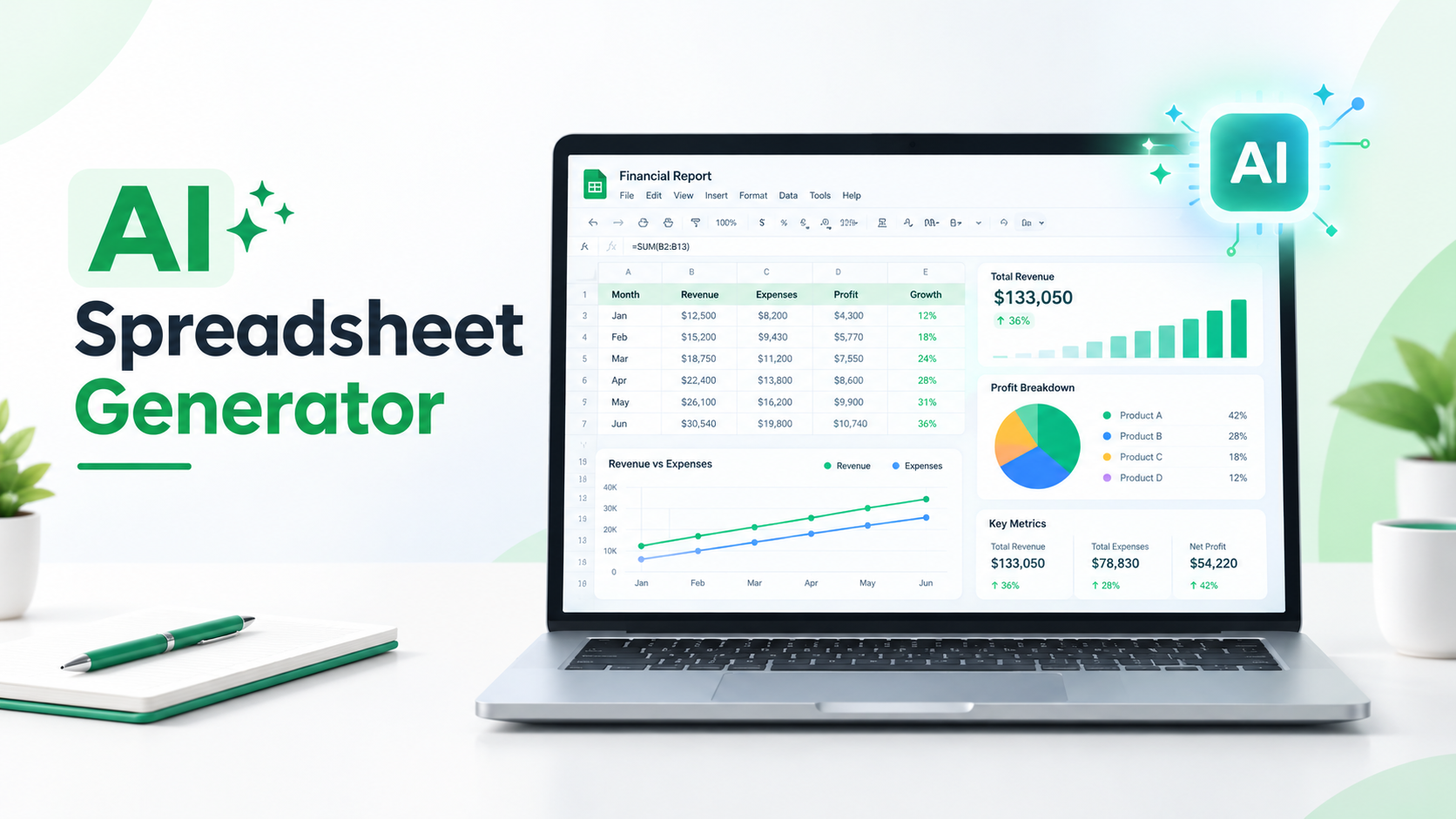
Creating spreadsheets can take more time than expected. Whether you need to organize business expenses, track sales, manage a project, or analyze data, setting up columns, formulas, tables, and reports manually can become frustrating.
An AI spreadsheet generator can make this process easier. Instead of building everything from scratch, you can describe what you need in simple language and use artificial intelligence to help organize your information into a structured spreadsheet. Some tools can also suggest formulas, summarize data, and help create charts or reports.
But how does an AI spreadsheet generator work? Can it create useful Excel spreadsheets from text prompts? Are there free AI spreadsheet generators available for everyday tasks?
In this guide, we will explore how these tools work, compare some popular AI spreadsheet solutions, share practical prompts, and explain how you can explore Volnyn as part of your AI-powered workflow.
An AI spreadsheet generator is a tool that uses artificial intelligence to help users create, organize, and work with spreadsheet data.
Traditionally, creating a spreadsheet requires you to decide which columns to use, enter information, apply formatting, and write formulas. An AI-powered tool can simplify some of these steps by understanding your instructions and helping you build a suitable structure.
For example, you could enter a prompt such as:
"Create a monthly household budget spreadsheet with income, rent, groceries, transportation, savings, and total expenses."
An AI tool can help turn this request into a structured spreadsheet layout. Depending on its capabilities, it may also suggest formulas, organize data, and provide insights.
AI spreadsheet generators can be useful for:
Small business owners managing expenses and revenue.
Freelancers tracking projects and payments.
Students organizing research and assignments.
Marketing teams reviewing campaign performance.
Individuals managing personal budgets.
Professionals working with reports and business data.
The exact capabilities vary between platforms. Some tools focus on generating spreadsheet layouts, while others can work directly with existing spreadsheets and support more advanced analysis.
Most AI spreadsheet generators use language models and other AI technologies to understand what a user wants to create.
Instead of manually building every part of a spreadsheet, you provide instructions describing your goal. The tool interprets your request and helps produce the required structure or content.
Here is a simple overview of the process.
Start by explaining what kind of spreadsheet you need. Include its purpose, the information you want to track, and any important calculations.
For example:
"Create a sales tracking spreadsheet with product name, quantity sold, unit price, total revenue, and monthly sales."
The more specific your instructions are, the easier it is for the AI to understand your requirements.
The AI can help organize your requirements into suitable columns, rows, and sections.
For a sales tracking spreadsheet, the structure might include:
Product Name
Quantity Sold
Unit Price
Total Revenue
Sales Date
This gives you a starting point instead of building the entire layout manually.
Some AI spreadsheet tools can help write formulas based on your instructions.
For example, if you want to calculate total revenue, a formula could multiply the quantity sold by the unit price.
In Excel, a simple formula might look like this:
=B2*C2
You can also ask an AI assistant to explain formulas such as SUM, AVERAGE, IF, and COUNTIF.
However, always check generated formulas against your actual spreadsheet structure before relying on their results.
Once the spreadsheet is generated, review the information carefully. Check column names, formulas, totals, and data formatting.
AI can make mistakes, especially when instructions are unclear or the data is incomplete. Human review remains important.
AI spreadsheet generators can support many everyday tasks. Here are some practical examples.
Small businesses need to monitor expenses to understand where their money goes.
An AI spreadsheet generator can help create an expense-tracking layout with categories such as:
Office supplies
Marketing expenses
Employee payments
Software subscriptions
Transportation
Rent and utilities
You can also request columns for transaction dates, payment methods, and monthly totals.
Managing personal finances becomes easier when income and expenses are organized in one place.
You can use AI to help create a monthly budget spreadsheet that includes:
Monthly income
Housing costs
Food expenses
Transportation
Entertainment
Savings goals
Remaining balance
This structure can help you understand your spending habits and plan your monthly budget.
Businesses often need to track product sales, revenue, and performance.
An AI spreadsheet generator can help organize sales information into a table with product names, quantities, prices, dates, and revenue.
For example, a business owner could use a sales tracker to compare monthly sales and identify products that generate more revenue.
Freelancers and teams often manage several projects at the same time.
A project tracking spreadsheet can include:
Project name
Client name
Start date
Deadline
Task status
Assigned person
Estimated budget
This can help you keep project information organized and identify tasks that need attention.
Marketing teams work with data from advertising campaigns, website traffic, email campaigns, and social media.
An AI spreadsheet generator can help create a reporting structure for metrics such as:
Campaign name
Advertising spend
Impressions
Clicks
Conversions
Cost per click
Conversion rate
You can use this information to review campaign performance, provided the underlying data is accurate.
Choosing the best AI spreadsheet generator depends on the type of work you need to complete. Some tools work directly inside familiar spreadsheet applications, while others provide AI-assisted data organization and analysis.
Here are some options worth exploring.
Microsoft Excel with Copilot is an option for users who already work with Excel and want AI assistance within their spreadsheet workflow.
Depending on the available subscription and features, Copilot can help users:
Generate and explain formulas.
Organize worksheet data.
Create charts and PivotTables.
Summarize information.
Identify trends and unusual values.
Build and edit spreadsheet structures.
One advantage is that users can continue working with Excel's existing spreadsheet functionality rather than moving their entire workflow to another application.
Best for: Professionals and businesses that already use Microsoft Excel.
Official website: Microsoft Excel
Google Sheets with Gemini offers AI assistance for users working within Google's spreadsheet environment.
Depending on plan eligibility and feature availability, Gemini can help with:
Creating tables from prompts.
Generating spreadsheet formulas.
Summarizing existing data.
Creating charts and graphs.
Organizing and formatting information.
Analyzing spreadsheet data.
This can be helpful for individuals and teams that already use Google Workspace for everyday collaboration.
Best for: Users who prefer browser-based spreadsheets and Google Workspace.
Official guide: Gemini in Google Sheets
Rows combines spreadsheet functionality with AI-assisted data workflows.
Its platform supports features such as importing and exporting spreadsheet files, organizing data, connecting information sources, and using AI to summarize, classify, and generate content.
It can be useful when you want to work with structured data while also using automation and integrations.
Best for: Teams and professionals who want spreadsheet functionality with connected data workflows.
Official website: Rows
Volnyn is a broader digital ecosystem that brings different online services and AI-powered capabilities together.
Its ecosystem includes website creation, AI tools, freelancing, property discovery, gaming, and digital asset services.
If you are exploring AI-powered productivity workflows, Volnyn is another platform worth checking out. Visit its website to explore the currently available tools and see whether its spreadsheet-related capabilities match your requirements.
Best for: Users interested in exploring multiple digital and AI capabilities within one ecosystem.
Explore: Volnyn
There is no single best option for everyone. Your decision should depend on your existing workflow and the type of spreadsheet tasks you want to complete.
For example, Excel Copilot may suit someone who already manages business reports in Excel. Gemini may be convenient for Google Sheets users, while Rows offers a different approach to spreadsheet workflows.
Before choosing Volnyn or another AI platform, test the available features and confirm that they support your required tasks.
Not every AI spreadsheet generator offers the same capabilities. Some focus on creating spreadsheet layouts, while others provide additional help with formulas, data analysis, and reporting.
Before choosing a tool, consider the following features.
A useful AI spreadsheet generator should make it easy to describe what you want in everyday language.
You should not need advanced spreadsheet knowledge just to explain the structure of a table.
Formula support can save time when working with calculations.
Look for tools that can help generate or explain common spreadsheet formulas, including SUM, AVERAGE, IF, COUNTIF, and VLOOKUP.
However, always verify the formulas before using them in important reports.
A good spreadsheet workflow should help you organize information into clear rows, columns, and categories.
This is especially useful when dealing with business records, expenses, sales, and project information.
Some AI tools can help summarize data, identify patterns, and explain results in simple language.
For example, you might ask an AI assistant to summarize monthly sales or identify which category has the highest expenses.
Visual reports can make spreadsheet information easier to understand.
Depending on the platform, AI may help generate charts, summaries, and dashboards from existing data.
File compatibility is important if you regularly work with Excel or Google Sheets.
Check whether the platform supports formats such as XLSX and CSV, and confirm whether you can download or export your finished spreadsheet.
A complicated interface can reduce the time-saving benefits of AI.
Choose a platform that makes it straightforward to enter instructions, review results, and continue working on your data.
Spreadsheets can contain sensitive business and personal information.
Before uploading financial records, customer information, or other private data, review the platform's privacy policy and data-handling practices. Avoid sharing confidential information with tools that you have not evaluated.
Volnyn is an online ecosystem designed to bring essential digital services and AI-powered capabilities together.
If you want to explore its AI-powered workspace, you can start by visiting the platform and checking the currently available tools.
Here is a practical approach to exploring an AI spreadsheet workflow.
Visit Volnyn and explore its available AI tools and workspace.
Check the available tools to identify whether spreadsheet generation or a suitable AI-assisted workflow is currently supported.
If the relevant functionality is available, write a clear prompt explaining what you want to create.
For example:
"Create a monthly business expense spreadsheet with columns for date, expense category, description, payment method, amount, and monthly total."
If you need specific calculations or categories, mention them in your instructions.
For example, you can request:
Separate categories for business expenses.
A column for transaction dates.
A total expense calculation.
A monthly summary section.
Check the generated spreadsheet carefully. Make sure the columns match your requirements and that any formulas or calculations are correct.
If something is missing, provide additional instructions to improve the result.
For example:
"Add a section that groups expenses by category and includes a total for each category."
You can also explore Volnyn's All-in-One Workspace to learn more about its available AI capabilities.
Note: Available spreadsheet functions, file formats, and export options may depend on the current Volnyn tools and platform features. Verify the functionality before relying on a specific capability.
One of the easiest ways to get better results from an AI spreadsheet generator is to write clear and detailed prompts.
Here are some examples you can adapt to your needs.
"Create a business expense spreadsheet with columns for date, category, expense description, payment method, and amount. Include a section for total monthly expenses and a summary of spending by category."
"Create a monthly personal budget spreadsheet with income, rent, groceries, transportation, utilities, entertainment, savings, and remaining balance. Include formulas to calculate total expenses and remaining income."
"Create a sales tracking spreadsheet with product name, quantity sold, unit price, total revenue, and sales date. Include a summary section for total revenue and monthly sales."
"Create a project management spreadsheet with project name, task description, assigned person, start date, deadline, priority, and status. Include a section to track overdue tasks."
"Create a marketing campaign tracking spreadsheet with campaign name, platform, advertising budget, impressions, clicks, conversions, and cost per click. Include a summary of campaign performance."
"Create a freelance income tracking spreadsheet with client name, project title, invoice date, payment deadline, invoice amount, payment status, and amount received. Include a summary of monthly income."
You can customize these prompts according to your business, project, or personal requirements.
To understand how AI can help with spreadsheet organization, consider this simple business expense example.
| Date | Category | Description | Amount |
|---|---|---|---|
| Oct 01 | Marketing | Facebook Ads | $150 |
| Oct 05 | Software | Monthly Subscription | $30 |
| Oct 10 | Office | Office Supplies | $45 |
| Oct 15 | Transportation | Business Travel | $75 |
| Total Expenses | $300 |
This is a basic example of how expense information can be organized into a structured table.
You could ask an AI assistant to improve this spreadsheet by adding:
Monthly expense summaries.
Category-wise totals.
Automatic calculations.
Payment method columns.
Charts showing spending patterns.
For example, you could use the following formula to calculate the total of the amounts in cells D2 through D5:
=SUM(D2:D5)
The formula calculates the total expenses, which in this example equal $300.
Remember that the example is an illustrative spreadsheet layout. The actual output depends on the AI tool and the instructions you provide.
AI spreadsheet generators and traditional spreadsheet software serve related but slightly different purposes.
| Feature | AI Spreadsheet Generator | Traditional Spreadsheet Software |
|---|---|---|
| Creating layouts | Can help generate structures from prompts | Usually requires manual setup |
| Formula assistance | Can suggest or explain formulas | Offers built-in formulas |
| Data organization | Can help organize information | Offers manual sorting and formatting |
| Data analysis | Some tools can summarize data with AI | Often relies on built-in functions and charts |
| Customization | Depends on the AI tool | Often provides extensive manual control |
| Human review | Still necessary | Still necessary |
AI tools can reduce repetitive work, but traditional spreadsheet software remains useful for detailed editing, complex calculations, and established business workflows.
For many users, combining AI assistance with familiar spreadsheet software is a practical approach.
AI can make spreadsheet creation easier, but the quality of the result depends on how you use the tool.
Here are some common mistakes to avoid.
A request such as "Make a business spreadsheet" does not explain what information you want to track.
Instead, mention the spreadsheet's purpose, required columns, calculations, and preferred layout.
Never assume that an AI-generated formula is correct.
Test calculations with sample data and verify that cell references match your spreadsheet.
AI cannot reliably produce accurate analysis when the underlying information is missing or inconsistent.
Clean your data before requesting summaries or calculations.
Avoid uploading sensitive customer records, financial information, or confidential business documents without reviewing the platform's data-handling practices.
Some platforms generate layouts, while others can edit workbooks, analyze information, and export files.
Check the actual functionality before selecting a tool for an important workflow.
Before using an AI spreadsheet generator, it is worth understanding both its benefits and limitations.
1. Saves Time on Initial Setup
AI can help you create a spreadsheet structure without manually planning every column and section.
2. Helps Beginners
People who are unfamiliar with spreadsheet formulas and layouts can use simple instructions to get started.
3. Supports Different Tasks
From personal budgets to sales reports, AI can help with a variety of spreadsheet-related tasks.
4. Makes Formula Assistance Easier
Some tools can explain formulas or suggest calculations based on your requirements.
5. Helps Organize Information
AI can help turn a loosely described task into a more structured format.
6. Supports Faster Data Analysis
Some AI-powered spreadsheet tools can summarize large amounts of information and help identify patterns.
1. AI Can Make Mistakes
Generated formulas, calculations, and data structures may contain errors. Always verify important results.
2. Results Depend on Your Instructions
Vague prompts can produce incomplete or unsuitable spreadsheets.
3. Advanced Work May Require Manual Editing
Complex financial models, macros, and specialized reporting may still require spreadsheet expertise.
4. Privacy Requires Attention
Do not upload confidential information without checking how the platform handles user data.
5. Features May Require Paid Plans
Some advanced AI features are available only through eligible subscriptions or paid plans.
A free AI spreadsheet generator can be a useful starting point if you want to create simple spreadsheets without investing in additional software.
However, free tools may have limitations involving usage, available features, file handling, or advanced functionality.
Before choosing a free option, consider what you actually need.
If you only want a simple monthly budget or expense tracker, basic functionality may be enough. If you regularly work with business data, formulas, or reports, you may need more advanced capabilities.
It is also worth comparing the available features instead of choosing a tool based only on the word "free."
Check these things before getting started:
Does the free plan include AI spreadsheet generation?
Are there daily or monthly usage limits?
Can you edit the generated spreadsheet?
Does it support Excel or CSV files?
Are formula assistance and data analysis included?
Are there restrictions on downloading or exporting files?
A free plan can be enough for occasional tasks, but regular business use may require more advanced functionality.
The best AI spreadsheet generator depends on your requirements. Microsoft Excel with Copilot, Google Sheets with Gemini, and Rows offer different approaches to AI-assisted spreadsheet work. Compare their capabilities, ease of use, privacy practices, and pricing before making a decision.
Yes. Some AI-powered tools can help create spreadsheet structures, generate formulas, and organize data. The ability to produce or export an Excel file depends on the specific tool.
Some platforms offer free access or limited free features. However, usage limits and available functionality vary. Check the current pricing and terms before choosing a tool.
Yes. AI tools can suggest and explain Excel formulas based on your instructions. Common examples include SUM, AVERAGE, IF, COUNTIF, and VLOOKUP. You should test generated formulas with your actual data before relying on them.
Yes. Some AI spreadsheet tools can turn natural-language instructions into spreadsheet structures. The quality of the result depends on the tool and how clearly you describe your requirements.
Yes. Certain AI tools can summarize datasets, identify patterns, highlight unusual values, and explain results. The available analysis features vary between platforms.
Yes. You can describe your income, expenses, savings goals, and categories to an AI tool and ask it to help organize them into a monthly budget structure.
Not always. AI-generated formulas and calculations can contain mistakes. Review the spreadsheet, test formulas, and verify important figures before using the results.
Not completely. AI tools can make some spreadsheet tasks easier, but traditional spreadsheet software still offers important editing, calculation, and customization capabilities.
You can explore Volnyn's AI workspace and check its currently available spreadsheet-related capabilities. If the required functionality is available, describe the spreadsheet you need, provide clear instructions, and review the generated result to make sure it meets your requirements.
An AI spreadsheet generator can make everyday spreadsheet tasks easier by helping you organize information, create structured layouts, and work with formulas. Whether you are managing business expenses, tracking sales, or planning a personal budget, AI can give you a useful starting point.
So guys, in this article, we explored how AI spreadsheet generators work, which tools are worth considering, and how they can support different tasks. The right tool depends on your requirements, budget, and existing workflow.
If you want to explore multiple digital and AI capabilities in one place, take a look at Volnyn and see whether its available tools fit your workflow. Always review AI-generated results before using them for important decisions.