
Welcome to Volnyn
Sign in or create an account to continue
Continue with Google
or
Sign in with email
New here? Create an account
By continuing, you agree to our Terms of Service
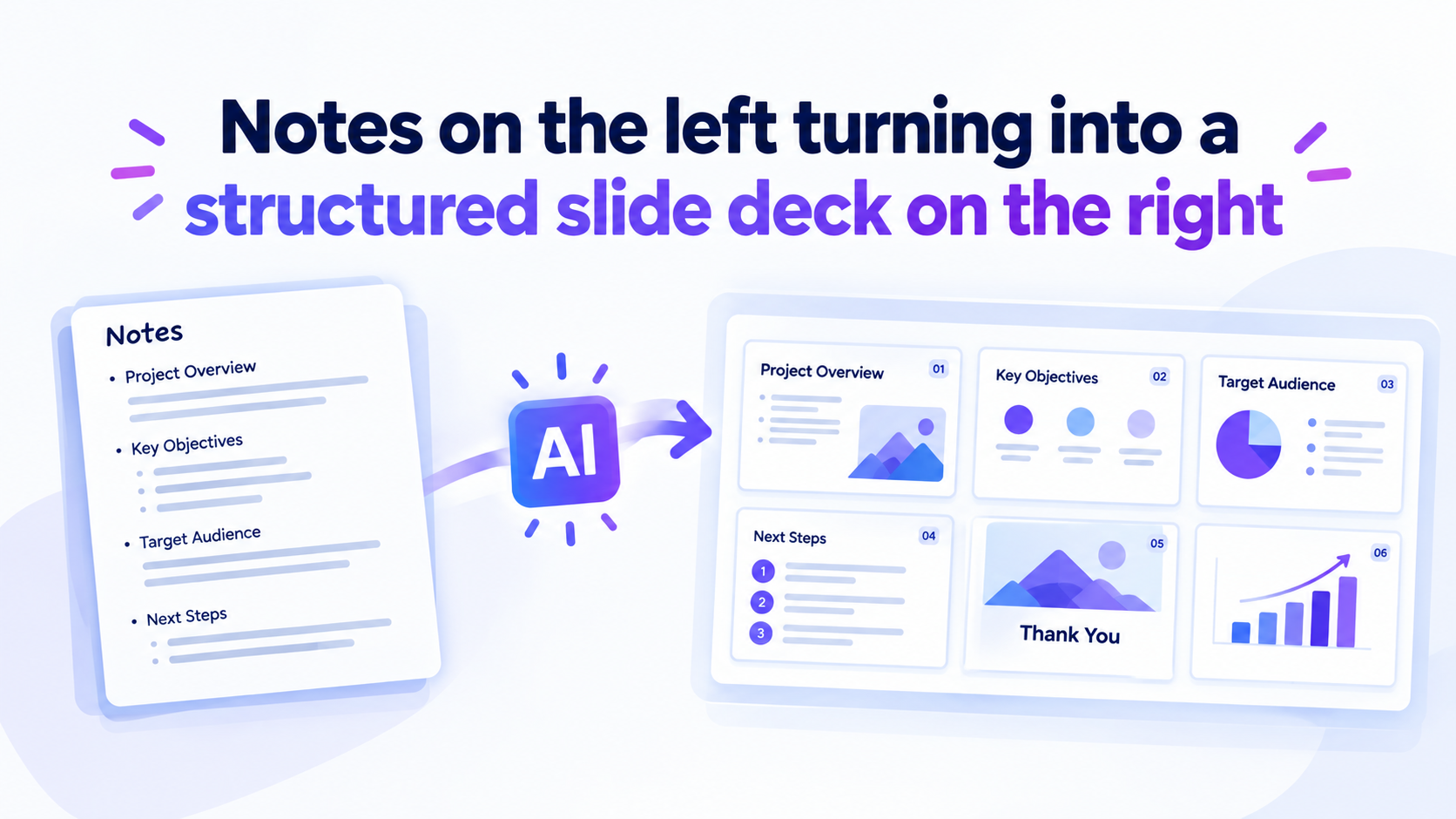
You already have the content — a set of notes, a report, an outline, or a document full of the right ideas. What you don't have is time to turn it into 15 formatted slides. An AI presentation maker that works from text solves exactly this problem: you paste or type your existing text, and the AI restructures it into a structured, designed slide deck — no blank-canvas starting point required.
This guide explains how text-to-presentation AI actually works, what separates it from a generic "type a topic and get slides" tool, what kind of input gets you the best results, and where it still falls short of a human editor.
An AI presentation maker that works from text is a tool that takes writing you already have — notes, a document, an outline, meeting minutes, an essay — and converts it into a slide deck automatically. Instead of you deciding what goes on each slide, the AI reads your text, identifies the main ideas and their supporting details, and distributes them across a logical slide sequence with titles, bullet points, and a consistent visual design.
This is a distinct capability from a general AI slide generator. A generic tool can create a deck from almost nothing — a single sentence describing a topic. A text-to-presentation tool is built for the opposite starting point: you already have too much content, in the wrong shape, and need it condensed and organized.
Under the hood, most text-to-presentation tools go through a few consistent stages, even though the exact models differ between products:
Parsing and structure detection. The AI scans your text for existing structure — headings, paragraph breaks, numbered lists, topic shifts — to understand where one idea ends and the next begins.
Content condensation. Full paragraphs get compressed into slide-appropriate fragments: a title, a handful of bullet points, maybe a supporting statistic or quote. This step matters more than it sounds — a slide with a wall of text defeats the purpose of a slide.
Slide sequencing. The AI decides how many slides your text warrants and in what order, typically following a logical flow (introduction → main points → supporting detail → conclusion) rather than a strict line-by-line dump of your original document.
Design application. A visual template — fonts, colors, layout, spacing — is applied consistently across the deck, so the output looks designed rather than just formatted.
The reason AI restructures your text instead of simply splitting it across slides comes down to basic presentation legibility. Slides that cram in too much text overload an audience's ability to read and listen at the same time — a problem well documented in research on cognitive load and multimedia learning, most notably Richard Mayer's principles for designing multimedia instruction (see external source #1 in Section 8). A good text-to-presentation tool is, in effect, applying that condensation instinct automatically instead of leaving it to you.
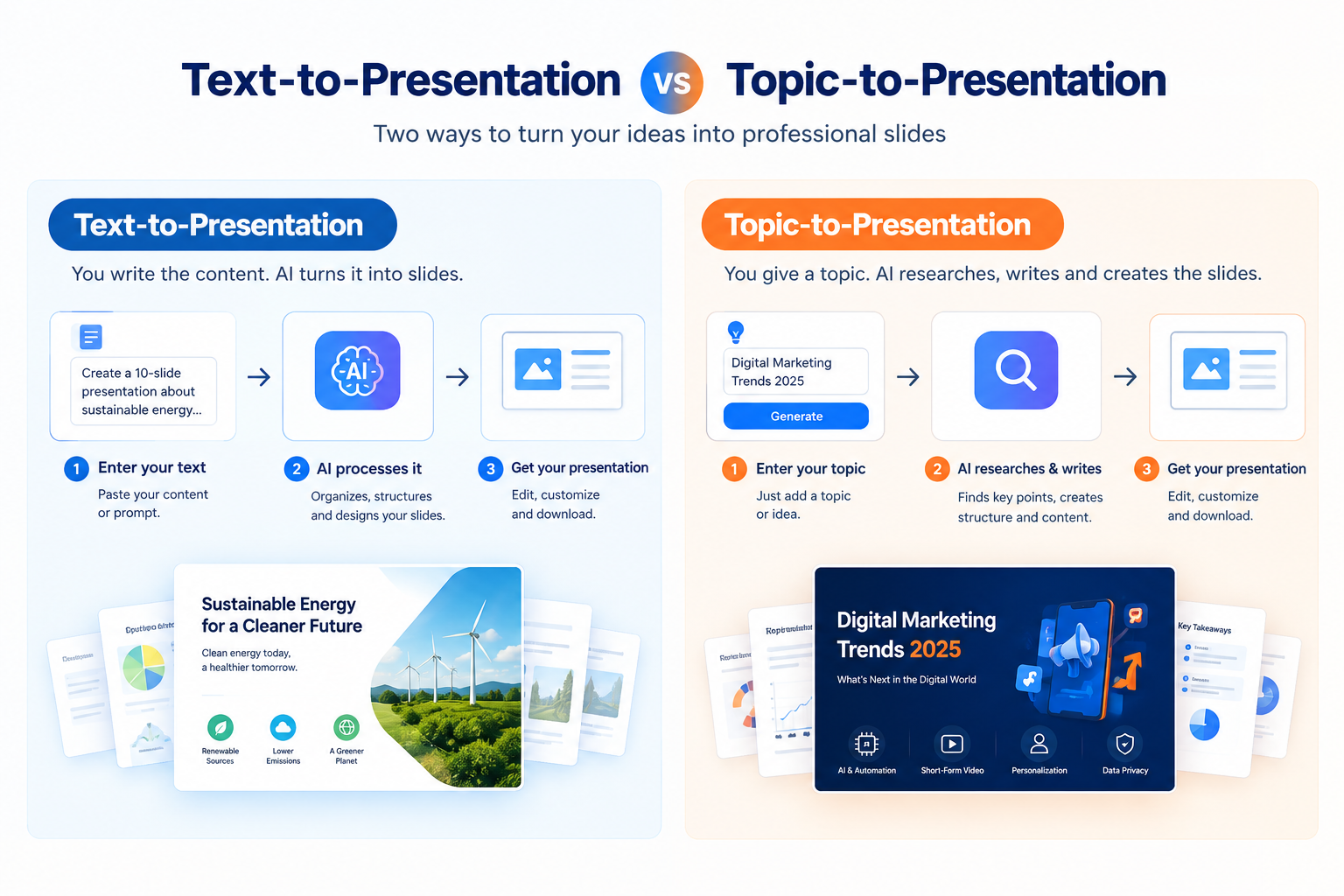
Both are "AI presentation makers," but they solve different problems:
In practice, the better tools in this space — including Volnyn's — support both: you can describe a topic from nothing, or paste in text you've already written and have it converted instead.
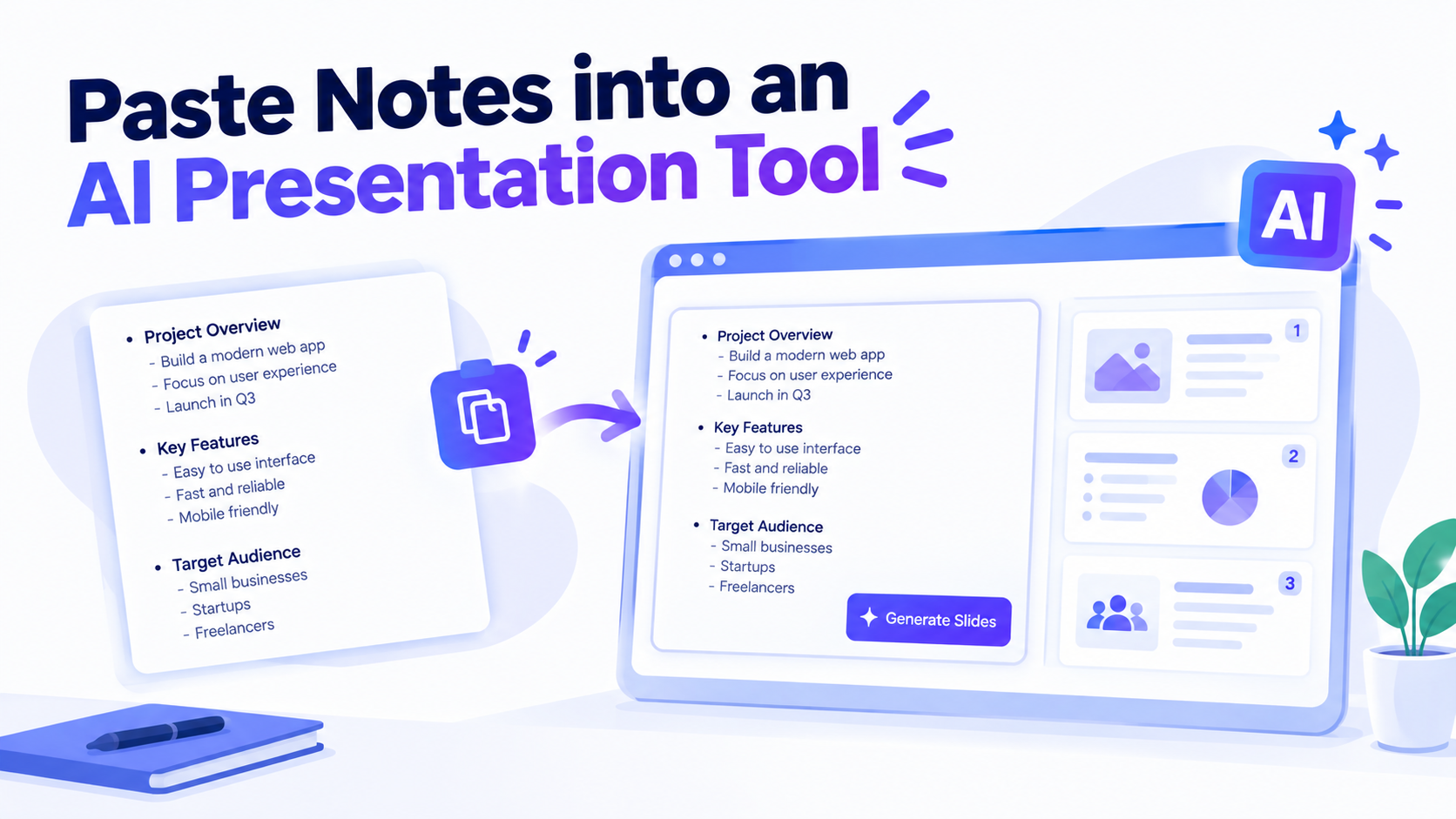
Gather your text. This can be a rough outline, a finished report, meeting notes, or even a long paragraph of unstructured thoughts.
Paste it into the tool. Most text-to-presentation tools accept plain text directly, and several also accept uploaded documents (Word, PDF).
Let the AI structure it. The tool identifies your main sections, condenses each into slide-ready content, and applies a design template.
Review the slide breakdown. Check that the AI split your content in a way that matches how you'd actually present it — reorder or merge slides if needed.
Refine details. Adjust wording, swap layouts, fix any oversimplified points, and add images or charts where they'd help.
Export or present. Download the deck in your needed format, or present directly from the browser.
Not all text converts equally well. A few practical guidelines:
Text with existing structure converts best. Headings, numbered points, or clearly separated paragraphs give the AI clear boundaries to work with.
Give it context, not just content. A one-line note like "increase pricing by 10%" is ambiguous; "Q3 pricing recommendation: increase pricing by 10% to offset rising costs" gives the AI enough to write a coherent slide.
Length matters, but not linearly. A 300-word outline and a 3,000-word report can both produce a good deck — but the report needs the AI to do more condensation work, so expect to review those slides more closely.
Mixed formats work too. Bullet notes, prose paragraphs, and numbered lists can all be pasted together; most tools handle a blend reasonably well.
Professionals turning a written report or proposal into a deck for a meeting, without rebuilding the content from scratch.
Educators converting lecture notes or a syllabus outline into slides for class.
Marketers taking a campaign brief or strategy document and turning it into a presentable deck for stakeholders.
Students and researchers converting an essay, paper, or set of study notes into presentation form for a class assignment.
Being upfront about this matters, because no current tool gets it perfectly right every time:
Nuance can get lost in condensation. A carefully worded caveat in your original text might get simplified into a shorter bullet that loses precision — always review AI-condensed slides against your source text.
Brand voice and tone need a check. AI applies a generally professional tone; it won't automatically match a distinctive brand voice without you adjusting wording afterward.
Highly technical or numerical text needs extra attention. Dense technical writing, legal language, or data-heavy tables often need manual cleanup to display correctly on a slide.
It's a first draft, not a final deck. Every text-to-presentation tool — including Volnyn's — is meant to get you to an editable starting point fast, not to replace a final human review before you present.
If you're weighing whether to keep rebuilding decks manually or hand the first pass to AI, the practical case for the second option is time: turning a document into a properly structured, designed deck by hand can take an hour or more, even when you already know exactly what you want to say.
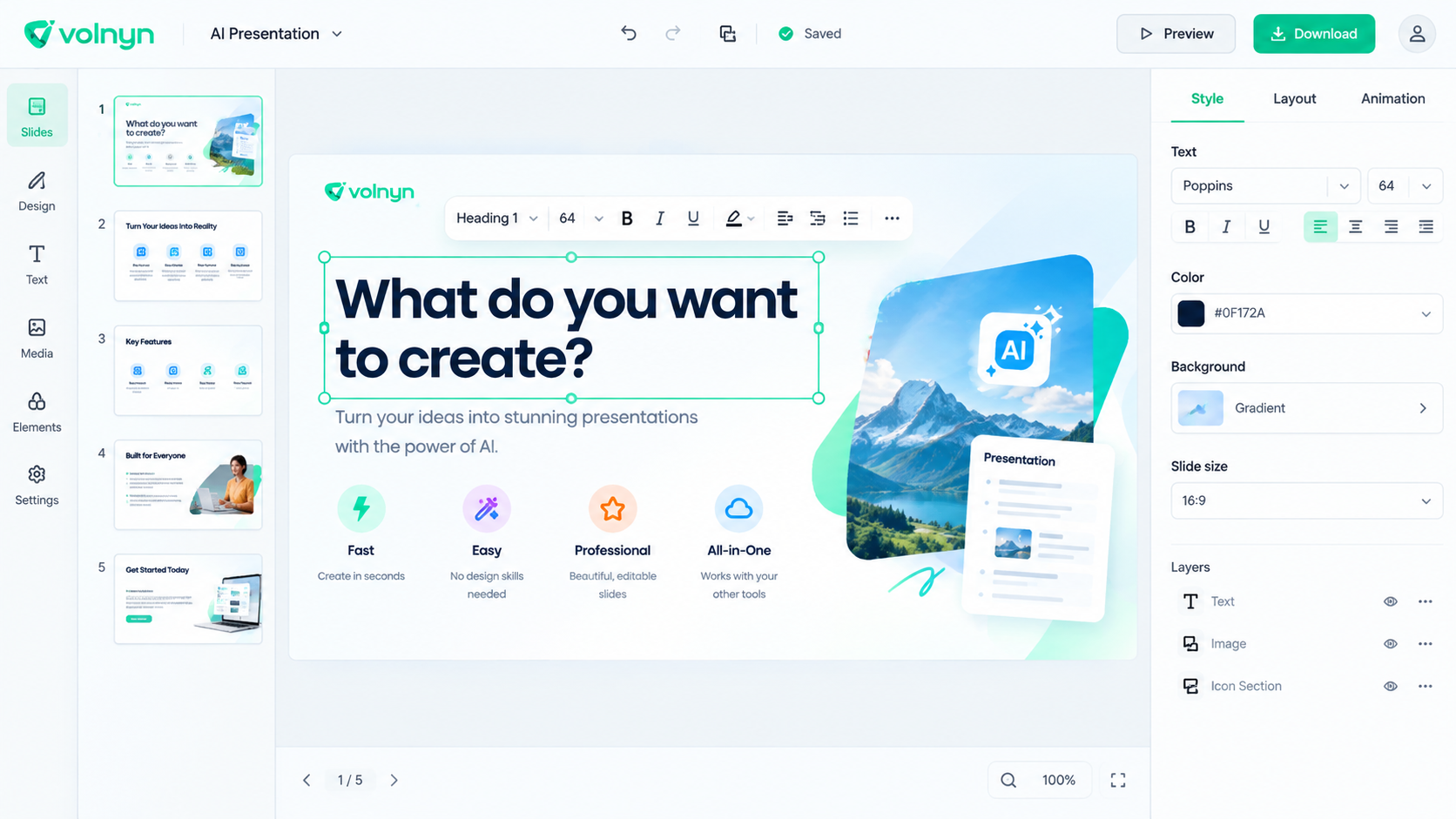
Volnyn's AI presentation maker is built to handle exactly this workflow — you can paste in notes, a report, or an outline, and it converts that text into a structured, editable slide deck rather than making you start from a blank canvas. Every slide it produces stays fully editable afterward, so you can fix the details the AI oversimplified, adjust tone, or swap layouts without starting over.
If your deck leans heavily on charts, infographics, or data visuals rather than plain text, Volnyn's AI Slides tool is worth pairing with it — it's built specifically for legible text-in-image rendering and accurate diagrams, which general-purpose AI image tools tend to struggle with.
Getting started doesn't require a plan decision up front — you can try it on the free plan and see the converted deck before committing to anything further.
Is an AI presentation maker from text free to use? Most tools, including Volnyn, offer a free tier that lets you generate and edit a deck with no credit card required. Paid plans typically unlock longer decks and higher usage.
Can I paste in a full document instead of typing notes? Yes — this is the core use case for a text-to-presentation tool. You can paste notes, an outline, or a full document, and the AI extracts the structure and condenses it into slides.
Will the AI keep my exact wording? Not entirely — part of the AI's job is condensing full sentences into slide-appropriate fragments. Review the output against your original text, especially for anything precise (numbers, legal language, exact commitments).
What file formats can I export to? Most modern tools export to PPTX (the standard PowerPoint format, based on the Office Open XML specification that Microsoft publishes and maintains — see external source #2 in Section 8) and PDF, so your deck opens correctly in PowerPoint, Google Slides, or Keynote.
How is this different from just asking an AI chatbot to write slide content? A general chatbot can write slide text, but a dedicated text-to-presentation tool also handles structure and visual design — slide breaks, layouts, consistent styling — automatically, which a plain chat response doesn't.
Can I still edit the deck after the AI generates it? Yes, in any tool worth using. The AI's output should be treated as an editable starting draft, not a finished product.