
Welcome to Volnyn
Sign in or create an account to continue
Continue with Google
or
Sign in with email
New here? Create an account
By continuing, you agree to our Terms of Service
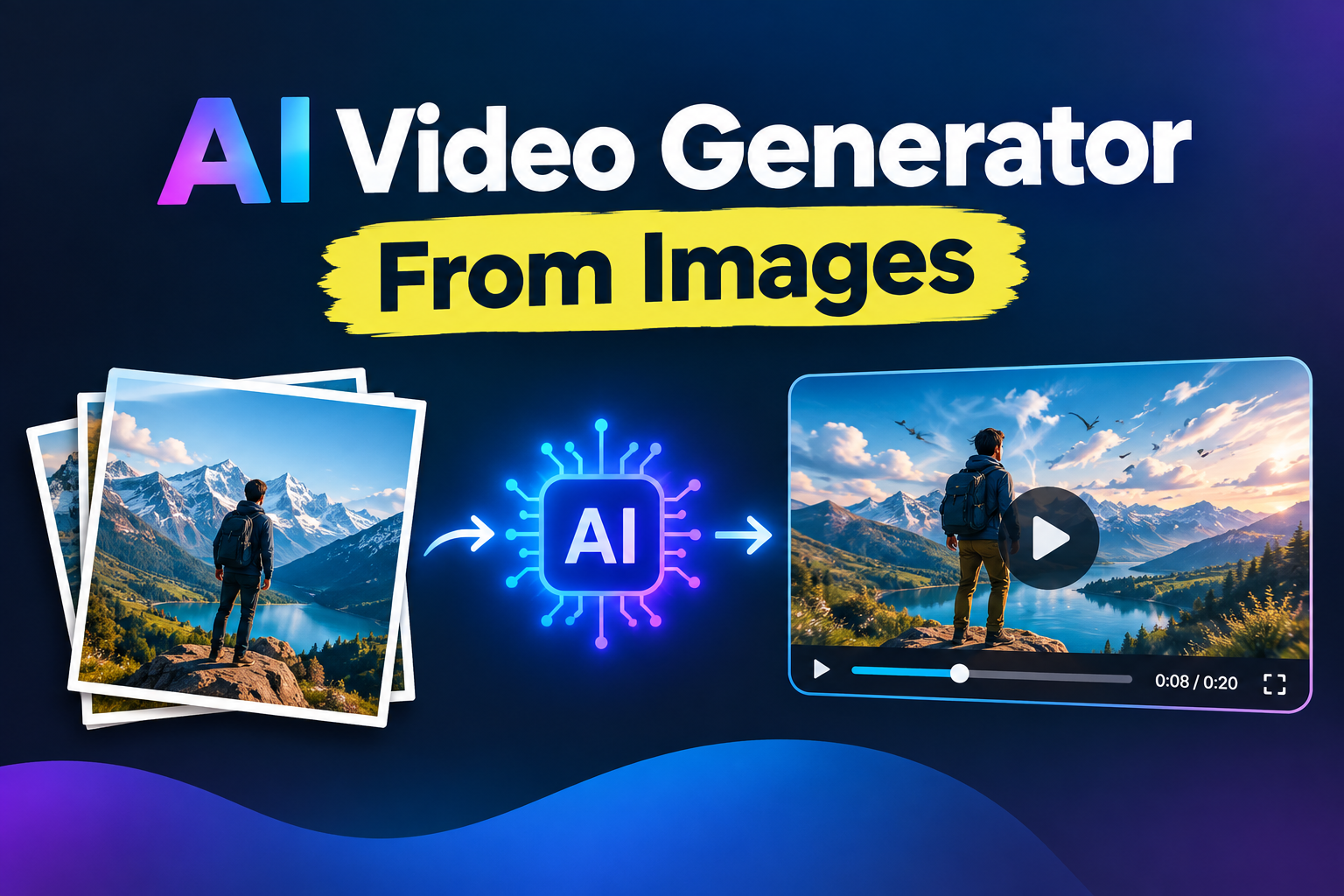
Got a great photo but wish it had a little more life to it?
Image-to-video AI can turn a still image into a short moving clip by using the original image as a visual starting point and adding motion based on your instructions. A product photo can get a slow camera move, a landscape can gain subtle environmental motion, and a portrait can become more dynamic without recreating the entire scene from scratch.
The important part is understanding what image-to-video AI is actually doing—and how to describe the motion you want.
Image-to-video generation starts with an existing image rather than a blank prompt.
You give the AI a still image and, depending on the tool, a motion prompt describing what should happen. The system then uses the image as a visual reference while generating a sequence of frames that introduces movement.
A typical workflow looks like this:
Choose or upload an image. This becomes the visual starting point for the video.
Describe the motion. You might ask for a slow camera push-in, gentle wind, moving clouds, or a person turning their head.
The model uses the image as a reference. Important visual characteristics of the original image are used to guide the generated frames.
The model generates a sequence of frames. The goal is to introduce the requested movement while keeping the scene visually consistent.
Review and regenerate if needed. Small changes to the motion prompt can produce noticeably different results.
This is the main difference between image-to-video and text-to-video. With text-to-video, you describe the scene you want created. With image-to-video, you already have the scene and are asking the model to animate it.
The easiest way to think about the difference is:
Image-to-video: "Here is my image. Make it move."
Text-to-video: "Here is my idea. Create the video."
Image-to-video is especially useful when the starting image matters. For example, if you already have a specific product photograph, property image, illustration, or AI-generated image, you can use that visual as the foundation rather than asking the model to recreate it from a description.
Text-to-video is more flexible when you are starting with an idea and don't have a reference image yet.
In practice, you can use both workflows in the same creative project.
Image-to-video is useful whenever you have a good still image but want to turn it into something more dynamic.
Turn a static product shot into a short promotional clip with a subtle camera movement, product rotation, or environmental animation.
For example:
"Slow camera push-in toward the wireless headphones. Keep the product centered and unchanged. Soft studio lighting with subtle reflections."
The key is to ask for motion that makes sense for the original composition.
A portrait can be given subtle movement such as a slight head turn, natural hair movement, or a gentle camera push.
Subtle motion usually works better than asking a static portrait to perform a complicated action.
A still interior photograph can become a short walkthrough-style clip with controlled camera movement.
For example:
"Slowly move the camera forward through the living room. Keep the furniture and room layout consistent. Natural daylight, realistic movement."
You can add movement to clouds, water, trees, or the camera itself.
A simple landscape might work well with:
"Slow cinematic camera movement toward the mountains. Clouds move gently in the background while the foreground remains stable."
If you already have a library of photographs, image-to-video generation gives you another way to turn those assets into short-form content.
This can be useful for product posts, promotional graphics, portfolios, presentations, and other visual content.
One of the biggest mistakes beginners make is describing the image again instead of describing what should happen to it.
If your image already shows a woman standing on a beach, you don't necessarily need a prompt that says:
"A woman standing on a beach."
The image already provides that information.
Instead, focus your prompt on motion.
A simple formula is:
Subject + Movement + Camera Movement + Speed + Constraints
For example:
"The woman gently turns toward the ocean while her hair moves slightly in the breeze. Slow camera push-in. Natural movement. Keep her face and clothing consistent."
This gives the model a much clearer idea of what you want.
For a product:
"Slow camera push-in toward the product. Keep the product stationary and centered. Subtle realistic reflections."
For a portrait:
"The person gently turns their head toward the camera. Subtle natural facial movement. Slow camera movement. Keep facial features consistent."
For a landscape:
"Clouds move slowly across the sky while grass moves gently in the wind. Very subtle camera drift. Natural realistic motion."
For a room:
"Slow camera movement forward through the room. Keep furniture and architecture consistent. Natural lighting and realistic perspective."
The goal isn't to make the prompt as long as possible. It's to make the intended movement clear.
Your starting image has a major effect on the final result.
A good source image should generally have:
A clear subject
Reasonable resolution
Good lighting
A composition that leaves room for the requested movement
Enough visual information for the model to understand the scene
A blurry or heavily distorted image gives the model less reliable information to work with.
You should also think about composition before choosing the motion.
For example, a tightly cropped product photograph may work well with a subtle push-in. Asking the same image for a dramatic camera pan may require the model to invent areas that were never visible in the original frame, which can increase the chance of unwanted distortion.
This is one of the simplest ways to improve your results.
If your source image is a close-up portrait, start with something like:
"Subtle head movement and gentle camera push-in."
Instead of:
"The person walks across the room while the camera circles around them."
The second instruction asks the model to create much more information than the original image contains.
Start with a believable movement and increase complexity gradually.
Your first generation doesn't have to be perfect.
If the motion looks unnatural, don't immediately change everything. Try changing one part of the prompt at a time.
For example:
First attempt:
"Slow camera movement toward the product."
If the camera movement is too strong:
"Very slow camera push-in toward the product."
If the product itself starts changing:
"Very slow camera push-in. Keep the product shape, position, and appearance consistent."
This makes it easier to understand which instruction improved the result.
Volnyn supports both text-to-video and image-to-video workflows, so you don't have to choose between starting from an idea and starting from an existing image.
If you already have a still image, you can use it as the starting frame and describe the motion you want. Volnyn's AI Image Studio also lets you generate or select an image and then use the Animate workflow to hand that image off to video generation.
That creates a useful workflow:
Create or upload an image → Animate it → Describe the motion → Generate → Review → Iterate
You can also start directly with a text prompt when you don't have a reference image.
For example, if you already generated a product image in Volnyn, you can take that image into the video workflow rather than recreating the product from scratch in another prompt.
It mostly depends on what you have at the beginning of the project.
You already have a specific image you want to preserve.
You want to animate a product photograph.
You want to add movement to a portrait.
You have an existing illustration or visual asset.
You want the video to start from a particular composition.
You only have an idea.
You don't have a reference image yet.
You want the AI to create the scene for you.
You want to experiment with different visual concepts quickly.
And if you're using Volnyn, you can move between these approaches depending on the project. The platform supports both workflows rather than treating them as completely separate tasks.
A blurry or low-quality image can make the generated result harder to control.
Fix: Start with the clearest suitable image you have.
Large camera movements or complicated actions can be difficult when the original image provides limited visual information.
Fix: Start with subtle, physically believable motion.
If the model already has the image, repeating every visual detail isn't always necessary.
Fix: Spend most of the prompt describing what should move and how the camera should behave.
If you completely rewrite your prompt every time, it becomes difficult to understand what improved the result.
Fix: Change one variable at a time—motion, camera speed, direction, or a specific constraint.
If you're animating someone else's photograph, product image, artwork, or other copyrighted material, make sure you have the appropriate rights or permission to use it.
For commercial projects, also check the current terms of the AI tool you're using.
If you're trying this for the first time, don't overcomplicate it.
Step 1: Choose a clear image.
Step 2: Decide what should move.
Step 3: Decide how the camera should move.
Step 4: Write a short motion-focused prompt.
Step 5: Generate the clip.
Step 6: Look for unwanted movement, distortion, or changes to the subject.
Step 7: Adjust one part of the prompt and generate again.
That's usually a better starting point than trying to write a huge cinematic prompt on your first attempt.
Image-to-video AI takes an existing still image and generates a moving video sequence based on that image and, when supported, a motion prompt.
Image-to-video starts with an existing visual reference. Text-to-video starts with a written description and generates the scene from that description.
Yes. An AI-generated image can be used as the starting point for an image-to-video workflow when the platform supports image input. In Volnyn, images created in AI Image Studio can be handed off to video generation through the Animate workflow.
A good prompt clearly describes the desired movement. Mention the subject's action, camera movement, speed, and any important things that should remain consistent.
There isn't one ideal length. A short, specific prompt is often more useful than a long prompt filled with unnecessary visual descriptions. Focus on the movement you actually want.
Yes. Volnyn's current AI video workflow supports both uploaded still images and text prompts, and images created in AI Image Studio can also be animated into video.
Image-to-video AI is most useful when you already have a visual you like but want to give it some movement.
The best results usually don't come from asking for the most dramatic animation. They come from choosing a suitable image, describing a realistic movement, and refining the result when necessary.
And you don't necessarily need separate tools for every step. With Volnyn, you can create an image, animate a still, or start directly from a text prompt depending on what your project needs.