Most "best free AI presentation maker" articles hand you a ranked list and move on. That's useful if you just want a name. It's less useful if you're staring at a blank prompt box wondering what to actually type, or you've already tried one of these tools and got three generic bullet points per slide instead of the deck you needed.
This guide skips the ranking. It walks through how a free AI presentation maker actually works, what "free" really covers, and the specific steps and prompt habits that get you a usable deck on the first or second try — without paying for anything.
What "Free" Actually Means Across AI Presentation Makers
"Free" in this category almost never means unlimited. It usually means one of these, sometimes stacked together:
A credit or generation cap — a fixed number of AI-generated decks or slides per day or per month
A slide-count limit — full functionality, but only up to a certain deck size
A watermark — free exports carry a branding mark until you upgrade
An export restriction — you can view or present the deck free, but downloading a clean PPTX or PDF requires a paid plan
None of these make a tool "not really free" — they just define where the free tier stops. The practical move is to check which limit applies before you build your deck around a tool, not after you hit the wall. Volnyn's presentation tool, for example, lets you generate and edit a full deck on its free plan with no credit card required — the specific slide limits and export options are worth checking on the current pricing page since plan details change over time.
What a Free Plan Can and Can't Do
Be realistic about what any AI — free or paid — is actually doing. It's drafting structure and a first pass at content from your description. It does not know your audience, your unstated priorities, or which one slide in a 12-slide deck actually matters most to the person deciding whether to fund you. That judgment call stays yours.
Free tiers add their own limits on top of that:
Generic phrasing is more common on free/lower-tier generations than on premium models
You may get fewer regeneration attempts before hitting a daily cap
Design customization (custom fonts, deep brand-kit control) is frequently paid-only across this category
None of this is a reason to avoid free tools. It's a reason to plan your prompt and your edits around what the free tier is actually good at: a fast, structured first draft you finish by hand.
Step-by-Step: Creating a Presentation With a Free AI Tool
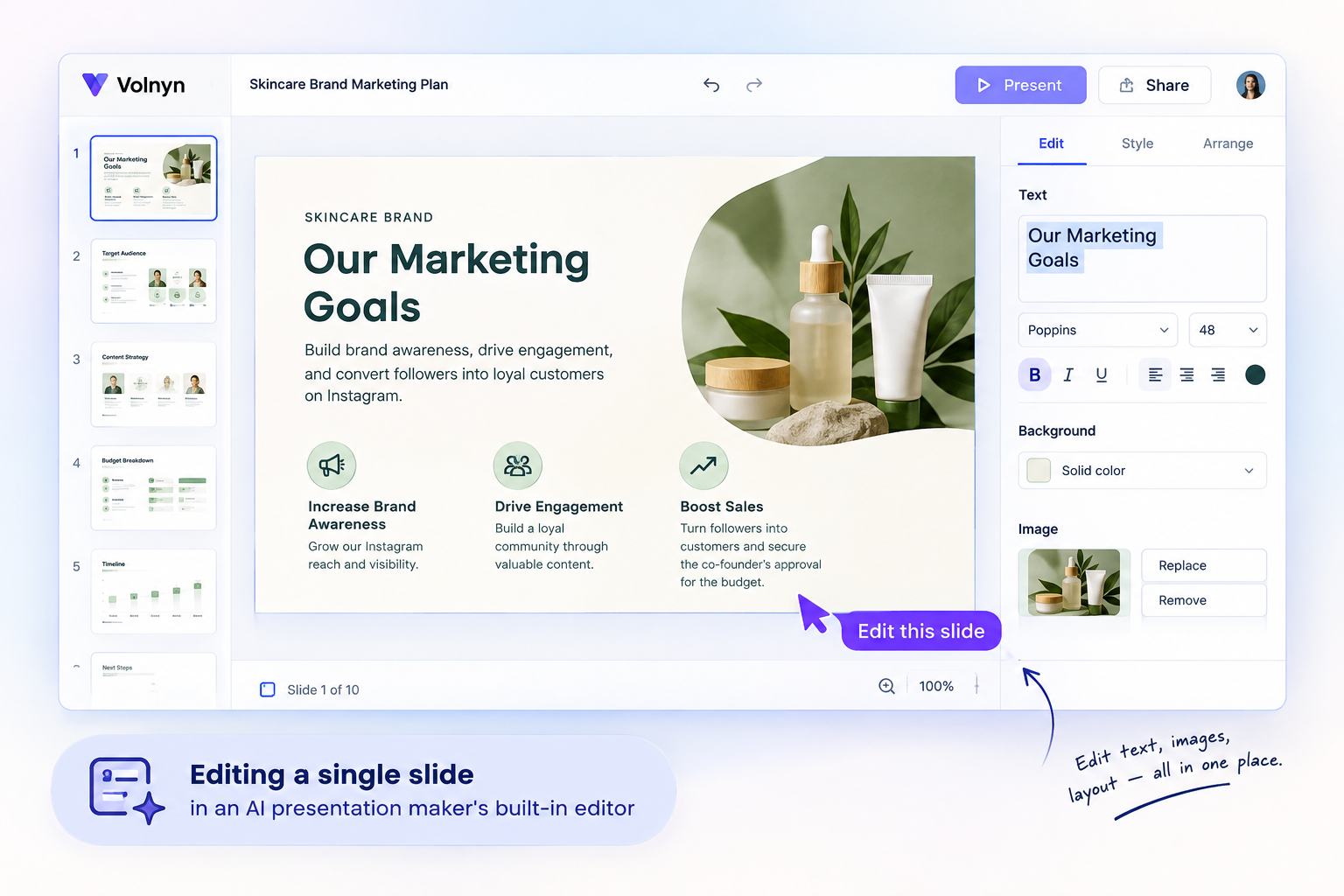
The mechanics are similar across most tools in this category. Here's the workflow using Volnyn's AI slides as the walkthrough example — the same sequence applies broadly.
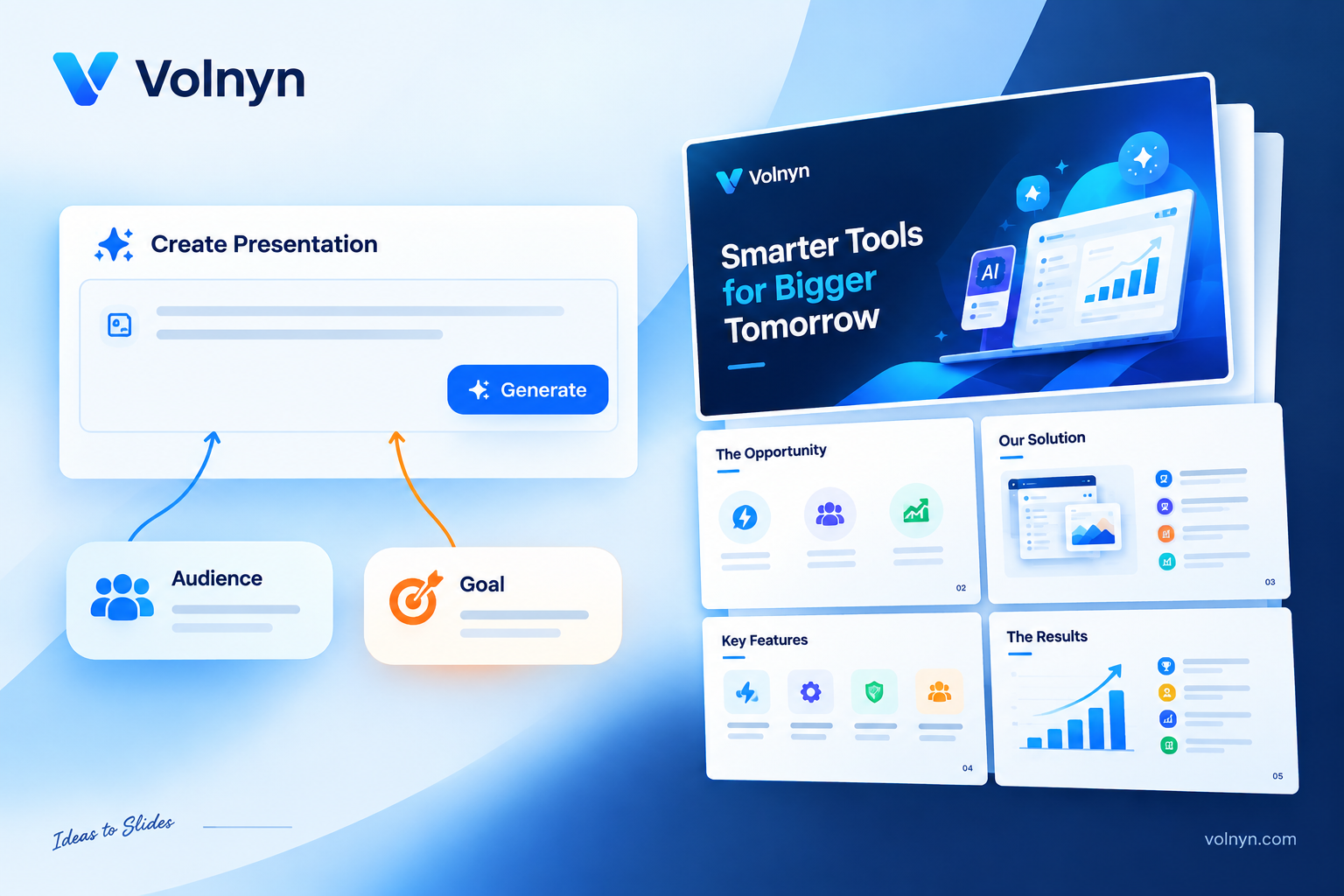
Step 1 — Describe the deck, not just the topic. Don't type "marketing presentation." Type "A 10-slide marketing plan presentation for a small skincare brand launching on Instagram, aimed at convincing a co-founder to approve the budget." The more context — audience, goal, length — the less generic the first draft.
Step 2 — Let the AI build the full structure. A good tool generates the opening, a logical flow through your points, and a closing slide, with content and layout already applied — not just an outline you fill in yourself.
Step 3 — Edit before you regenerate. If two slides are close but not right, edit the text directly rather than burning another generation on the whole deck. Most tools, including Volnyn's, let you regenerate a single slide instead of starting over — that's the better use of a limited free-tier budget.
Step 4 — Export within your plan's limits. Present straight from the browser if you don't need a file, or check your export format before you need it urgently — some free tiers only allow PDF, not editable PPTX.
Prompt Tips That Make Every Free Generation Count
Since free plans usually cap how many times you can generate, get more out of each attempt:
State the goal, not just the subject. "Convince investors" and "train new hires" produce structurally different decks from the same topic.
Name the audience. Executives, students, and customers need different tone and depth — say which one.
Set the length up front. Asking for "5 slides" versus "18 slides" in the prompt avoids a mismatched deck you'd otherwise burn a regeneration fixing.
Feed it your material. If you already have notes, an outline, or key numbers, include them in the prompt. Most tools will structure around your actual content instead of writing filler you'll delete anyway.
Regenerate the slide, not the deck. If nine slides are good and one is off, look for a per-slide regenerate option before you restart the whole generation.
Getting More Out of a Free Plan
A few practical workarounds when you're working entirely inside free tiers:
Split large decks into two generations. A 20-slide ask often produces thinner content per slide than two focused 10-slide generations you assemble yourself.
Bring your own visuals for anything mission-critical. If a specific chart or image matters more than what the AI defaults to, add it manually rather than regenerating the whole deck hoping for a better placeholder.
Match the tool to the one thing you actually need. If your only real requirement is a fast first draft you'll heavily edit anyway, a tool with a generous free draft — rather than the most feature-rich paid one — is the better fit.
Free AI Presentation Makers for Specific Needs
Turning a document into a deck. If you already have a Word document, PDF, or a set of notes, look for a tool that accepts pasted text or file input directly — this saves you from re-typing your own content into a prompt box. Volnyn's presentation tool accepts pasted notes or an outline and keeps your original points while adding structure.
For students and teachers. Free tiers are usually generous enough for single lectures, assignments, or study guides, since these are typically shorter, lower-stakes decks than a client pitch. The main thing to check is whether the free export leaves a watermark if the deck needs to be submitted or printed.
Exporting to PowerPoint specifically. If your deliverable has to be a .pptx file that opens cleanly in PowerPoint, confirm this before you build the whole deck in a tool — some free tiers only offer a web link or a watermarked PDF, not an editable PowerPoint export.
Common Free-Tier Problems (and How to Work Around Them)
Generic-sounding slides → Add more specific context to your prompt (real numbers, real audience, real goal) instead of a one-line topic.
Hitting a daily generation cap → Plan your edits in one focused session rather than regenerating repeatedly; edit manually for small fixes.
Watermarked exports → Present directly from the browser when a file isn't required, or check whether the specific export you need is included free before committing to a tool.
Formatting breaking on export → Test the export early — on your first deck, not the one due in an hour — so you know what a real PPTX or PDF from that tool actually looks like.
Where Volnyn Fits
If your priority is a fast, genuinely free first draft — and you might also need a matching one-pager, landing page, or supporting visuals for the same project — Volnyn's AI presentation maker is worth trying because it sits inside the same free account as Volnyn's website builder, image tools, and spreadsheet tool, so you're not juggling separate logins for one pitch. It generates a full deck from a description, is fully editable afterward, and doesn't require a credit card to start.
If your priority is one specific advanced feature — a zooming, non-linear canvas, or a deep brand-kit system across a whole team — a tool built specifically around that feature may serve you better; our full comparison of the leading AI presentation makers breaks those trade-offs down tool by tool.
Free vs. Paid: When to Upgrade
Consider paying once you consistently hit a specific, repeatable wall — not before. Common triggers: you need clean, watermark-free exports every time; you're generating more decks per week than the free cap allows; or your team needs shared brand templates rather than each person prompting from scratch. Until one of those is a recurring problem, a free tier is usually enough.
Frequently Asked Questions
Is there a genuinely free AI presentation maker, or does "free" always have a catch? Most tools that offer a free tier cap something — slide count, exports, or watermarking — rather than being free with no limits at all. Volnyn, Canva, and Gamma all let you generate a complete first deck for free; check the specific limit on each before you build a workflow around it.
Can I turn a PDF or Word document into a presentation for free? Yes, on several tools, including Volnyn's — paste your notes, outline, or document text and the AI structures it into slides while keeping your original points, without needing a paid plan.
Do free AI-generated presentations have a watermark? It depends on the tool. Some apply a watermark only on exported files, others only restrict slide count or generations rather than watermarking. Check the specific plan page rather than assuming either way.
Will a free AI presentation maker export to PowerPoint? Not always. Some free tiers only offer a web link or PDF; if you need an editable .pptx file, confirm the export format before committing your time to one tool.
How many times can I generate a presentation for free? This varies by tool and changes over time as plans update — it's usually framed as a daily or monthly credit/generation cap rather than an unlimited allowance. Check the current plan page for the exact number.
Final Recommendation
Start with whichever free tool lets you test the actual workflow — prompt, generate, edit — without hitting a paywall on step one. Volnyn's AI presentation maker is a reasonable place to do that since the free plan needs no credit card and sits inside a workspace where you can also build a website or visuals for the same project. If you want to weigh it against Gamma, Canva, Prezi, and others feature-by-feature first, the full comparison is the next stop.