
Welcome to Volnyn
Sign in or create an account to continue
Continue with Google
or
Sign in with email
New here? Create an account
By continuing, you agree to our Terms of Service
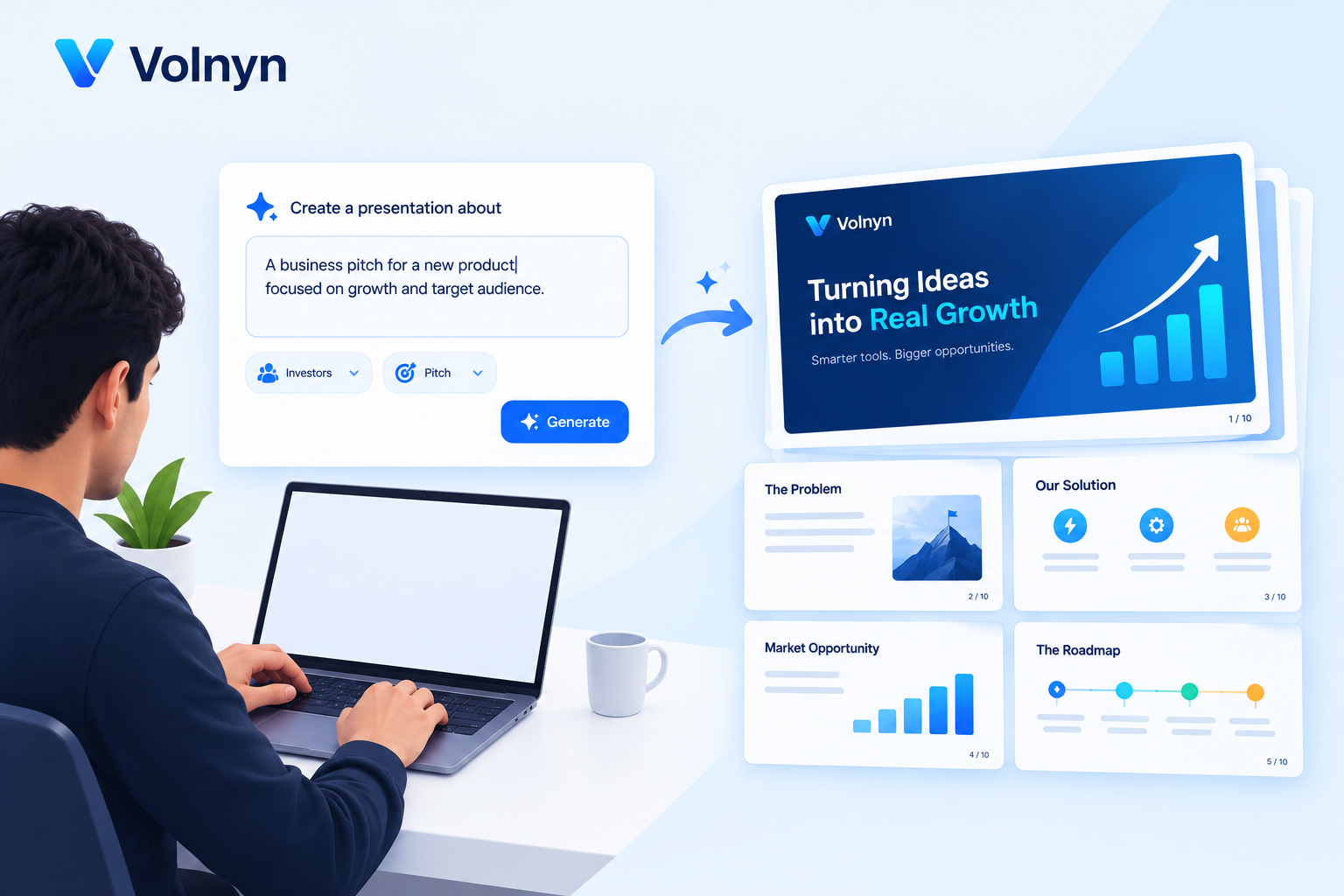
Most people asking how to create a presentation with AI aren't looking for a tool review — they have a deck due and no time to build it slide by slide. The short answer: describe what you need in a clear prompt, let an AI presentation tool generate the structure and content, then review, fact-check, and adjust the design before you present. The rest of this guide breaks that down into a process you can repeat for any deck, with any tool.
Before picking a workflow, it helps to know what's actually available. "AI presentation" isn't one thing — it's three different approaches with different trade-offs.
For anyone starting from a blank page — which is most people searching this — a dedicated AI presentation generator is the fastest path to a usable first draft, which is why the rest of this guide focuses on that workflow.
The single biggest predictor of a good AI-generated deck isn't the tool — it's how clearly you know what the presentation needs to do before you type anything. Ask yourself three questions:
What decision or action should the audience take after seeing this? (approve a budget, understand a process, buy something)
Who exactly is in the room? (executives who want conclusions first, students who need explanation, customers who need to be convinced)
How long do you have? A 5-minute standup update and a 30-minute investor pitch need very different slide counts.
Skipping this step is why so many AI decks come out generic — the AI can only work with what you give it.
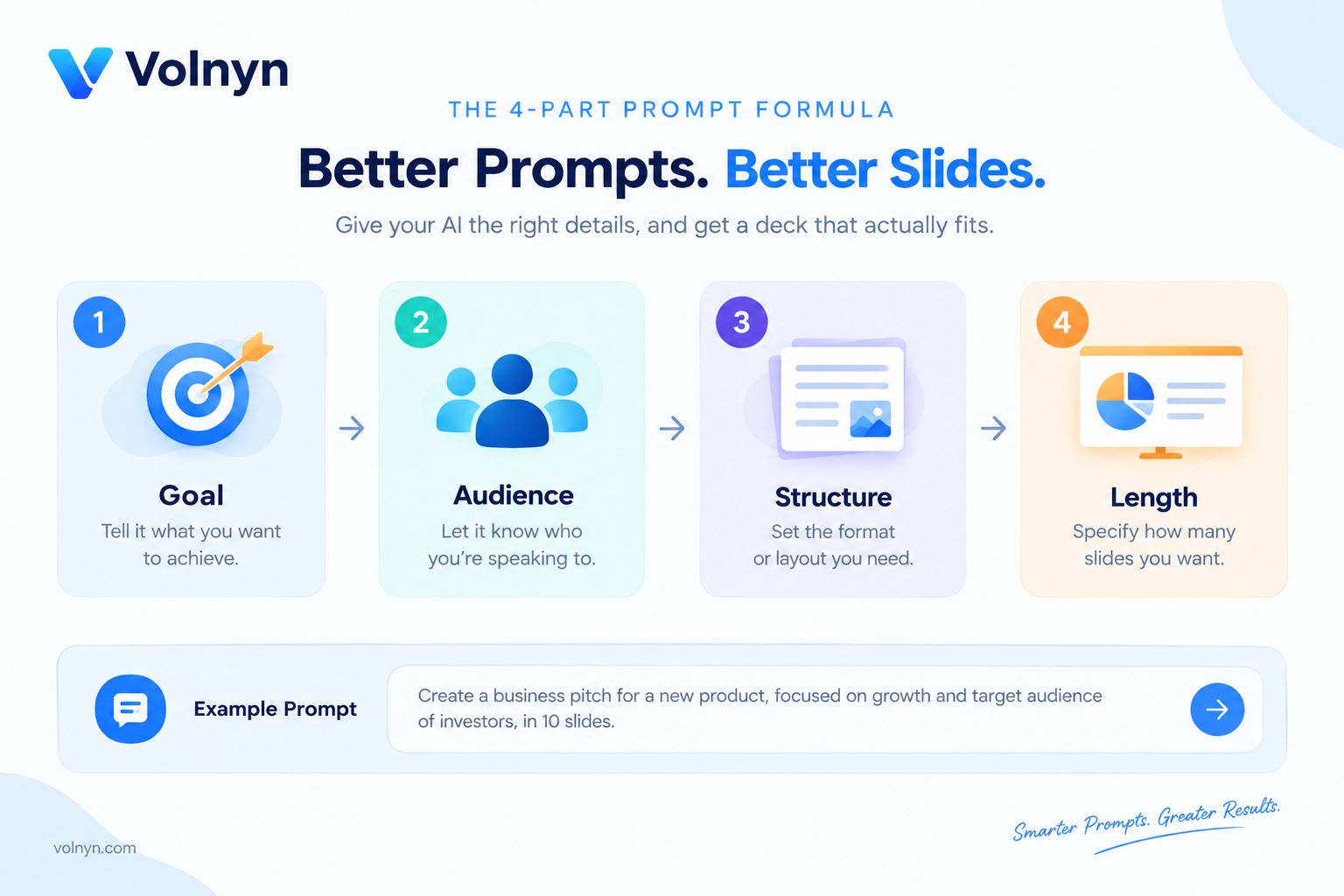 A vague prompt produces a vague deck. A useful prompt for an AI presentation maker usually contains four things: goal, audience, structure or key points, and length.
Weak prompt: "Make a presentation about marketing."
Strong prompt: "Create a 10-slide presentation pitching a Q3 social media marketing plan to a small business owner who has never run paid ads before. Cover: current problem, proposed channels (Instagram, TikTok), estimated budget, timeline, and expected results. Keep the tone practical and non-technical."
The strong version gives the AI a goal (pitch a plan), an audience (a non-technical owner), a structure (five named sections), and a length (10 slides) — everything Step 1 already gave you.
Once your prompt is ready, this step is fast: paste it into your AI presentation tool and let it generate the deck. Most modern tools, including Volnyn's AI presentation maker, can also take a pasted outline, meeting notes, or an existing document instead of a from-scratch prompt — useful if you already have raw material and just need it turned into a structured deck.
Expect a complete draft in well under a minute: titles, bullet content, and a consistent visual design applied automatically.
 This is the step people skip and shouldn't. AI-generated text can be confidently wrong, generic, or slightly off-tone — treat the first draft as a strong starting point, not a finished product. Specifically check for:
Factual accuracy — verify any statistic, date, or claim the AI added that you didn't supply yourself.
Tone match — does it actually sound like it's for your stated audience?
Redundancy — AI tools sometimes repeat the same point across two slides.
Missing context only you have — internal numbers, specific names, your actual timeline.
With the content confirmed, do a final design pass: adjust any slide that feels crowded, swap a generic image for something more specific to your topic, and check that colors and fonts stay consistent throughout. Then present directly from the browser or export to PDF or PPTX depending on how you'll deliver it.
"Create a 12-slide investor pitch deck for a subscription meal-kit startup targeting busy parents. Include problem, solution, market size, business model, competition, and ask."
"Turn these meeting notes into a 6-slide internal update for my team, focused on what changed this week and what we need from leadership." (paste your notes below the prompt)
"Build an 8-slide training presentation explaining workplace fire safety to new warehouse employees. Keep language simple and include a checklist slide."
"Make a 15-slide quarterly business review for executives who already know our business — skip background, focus on results, risks, and next quarter's plan."
The content feels generic. This almost always traces back to a generic prompt. Add specifics — real numbers, your actual audience, your actual constraints — and regenerate.
One slide is off, but the rest are fine. Don't regenerate the whole deck. Most AI presentation tools, including Volnyn's, let you regenerate a single slide while keeping the rest of the deck untouched.
A claim or statistic looks off. Treat every AI-added fact as unverified until you've checked it. This is the most important rule for using AI presentation tools responsibly — the AI is good at structure and phrasing, not at guaranteeing factual accuracy.
The design feels inconsistent after edits. Stick to the tool's built-in theme rather than manually changing colors slide-by-slide; most inconsistency comes from partial manual overrides.
AI handles layout and structure, but a few long-standing presentation design principles still decide whether a deck actually works in the room. The University of York's guide to presentation design highlights keeping slides simple and avoiding anything that distracts from the core message as one of the most consistent rules across presentation design practice — advice that predates AI tools but still applies to reviewing what they generate. When you reach Step 4 above, use that as your filter: if a slide the AI produced feels busy or off-message, that's the principle it's violating.
Sales and marketing teams — pitch decks, campaign recaps, and client proposals under real deadlines
Educators and students — lecture slides, assignments, and workshop material that need a clear structure fast
Founders and small teams — investor decks and internal updates without hiring a designer
Anyone starting from notes, not a blank page — turning meeting notes, a report, or an outline into something presentable
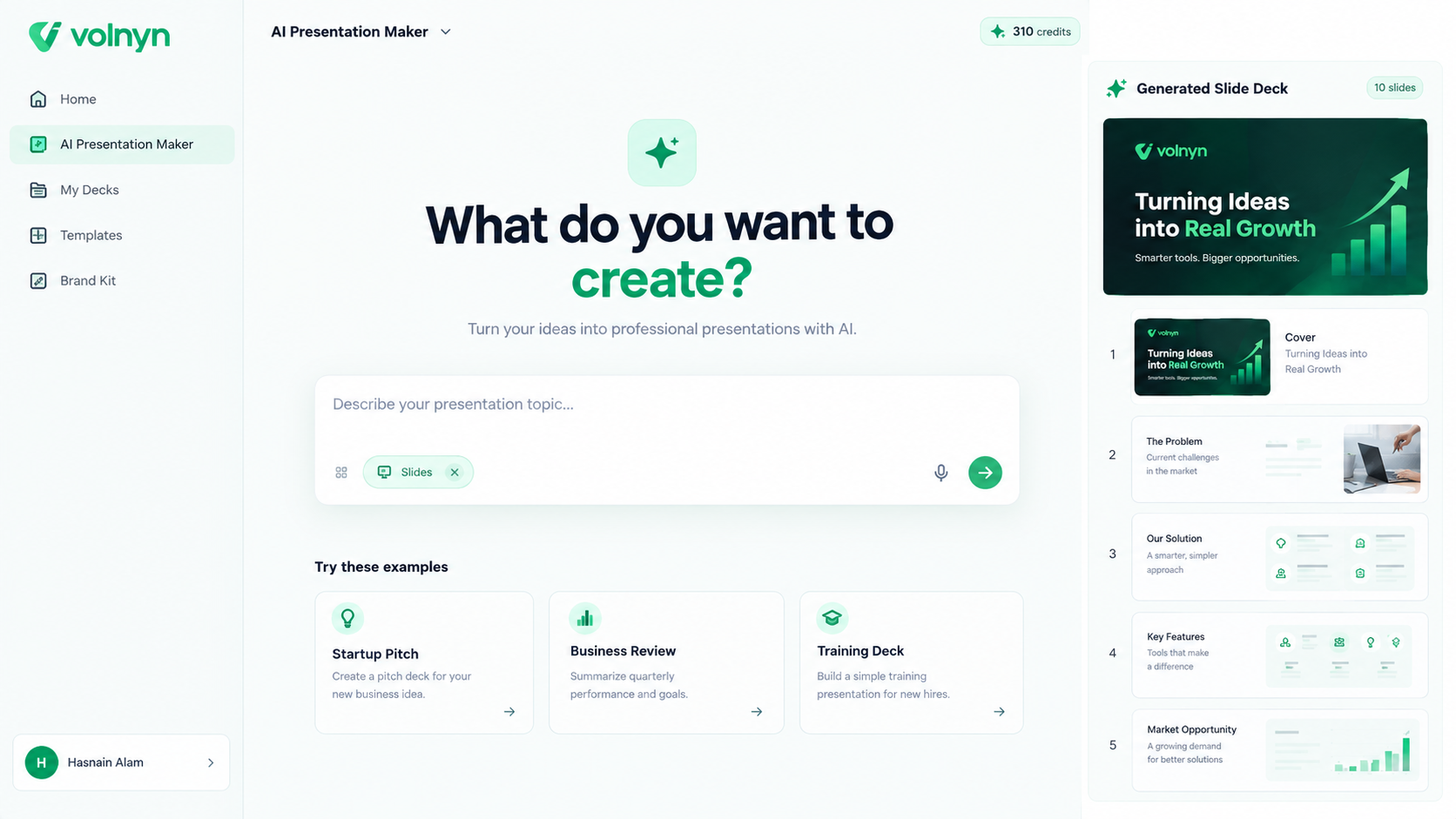 The fastest way to see this process work is to run it once. Write a prompt using the goal–audience–structure–length formula from Step 2, and generate a full draft with Volnyn's AI presentation maker — free to start, no credit card required, with every slide fully editable afterward. If your deck also needs a matching one-pager or landing page, Volnyn's AI website builder runs on the same prompt-to-draft workflow.
What is the best way to create a presentation with AI? Start with a clear, specific prompt that states your goal, audience, key points, and desired length, then generate a full draft with an AI presentation tool and review it before presenting.
Is it free to make an AI presentation? Many AI presentation tools, including Volnyn, let you generate a full deck on a free plan with no credit card required; paid plans typically add more generations or advanced features.
Can AI turn my notes into slides? Yes. Pasting meeting notes, a report, or an outline into an AI presentation tool is usually faster and more accurate than a from-scratch prompt, since the AI structures content you already trust.
How do I write a good prompt for an AI presentation? Include four elements: your goal, your audience, the key sections or points to cover, and the desired slide count or length.
Is AI-generated content in presentations accurate? Not automatically. Treat any statistic, date, or specific claim the AI adds — beyond what you supplied — as unverified until you've checked it yourself.
Can I edit a presentation after AI creates it? Yes, in every mainstream AI presentation tool. The AI-generated deck is a starting draft, and text, layout, colors, and images remain fully editable afterward.
How long does it take to create a presentation with AI? Generating a first draft typically takes under a minute. Reviewing, fact-checking, and doing a design pass usually takes longer than generation itself, depending on deck length.
What's the difference between AI in PowerPoint and a dedicated AI presentation maker? AI features built into existing software, like Copilot in PowerPoint, generally assist a deck you've already started. A dedicated AI presentation generator builds the full first draft — structure, content, and design — directly from a prompt or your notes.