
Volnyn Agent is a chat-based creative partner that analyzes what you give it — a product shot, a campaign brief, a story idea, or a reference image — and uses what it learns to plan and produce what comes next. Instead of generating a single asset in isolation, Agent can research, draft copy, generate images, kick off video workflows, call your connected tools, and save finished files to Space.
For dedicated still frames and short clips with full model controls, use AI Image Studio (/user/ai-image). Agent is best when you want a conversational loop: plan → generate → refine → hand off or publish.
This article walks you through the basics of creating with Agent, with examples of what is possible inside Volnyn.
What can Agent do?
Agent spans planning, generating, analyzing, and editing. New capabilities are added regularly through tools and connectors.
Generate
- Images — from text, reference uploads, or both. Good for character references, product shots, style exploration, CTAs, and social thumbnails. Enable Image Generation in the agent’s abilities, or ask Agent to open AI Image Studio for batch variations.
- Video — short clips via the generate_video tool when the Video Generation ability is enabled (Google Veo), or by generating a still first and animating it in AI Image Studio (Veo, Seedance, Wan, and other video models). Agent can draft motion prompts; the studio handles render settings.
- Copy & structure — scripts, captions, campaign angles, storyboards as markdown, slide outlines, and email drafts.
- Research — web search, document read, YouTube transcript analysis, and connector-backed reports (Slack, Gmail, Notion, and more).
Edit
- Image refinement — ask Agent to regenerate with tweaks, or open Tools in AI Image Studio for inpaint-style edits.
- Copy editing — rewrite tone, length, locale, or format without re-running expensive media jobs.
- Video continuity — chain clips by using the last frame of one generation as the first frame of the next (see Creating with AI Video).
Create & organize
- Build multi-step deliverables (brief → mood board images → post copy)
- Write scripts and narrative structure
- Save outputs to Space and reuse them across chats
- Run on a schedule or from email/Slack when Channels are configured
What to keep in mind
Agent can help plan your project, show its intent before each step, and ask for approval before side effects (send email, post to Slack, etc.). Generating media is inherently variable — Agent’s plan describes intent, not a guaranteed outcome. Like all AI models, results may need iteration. Review the outline before approving expensive tool runs.
Step 1 – Starting an Agent chat
You can open Agent from several places across Volnyn:
From the sidebar
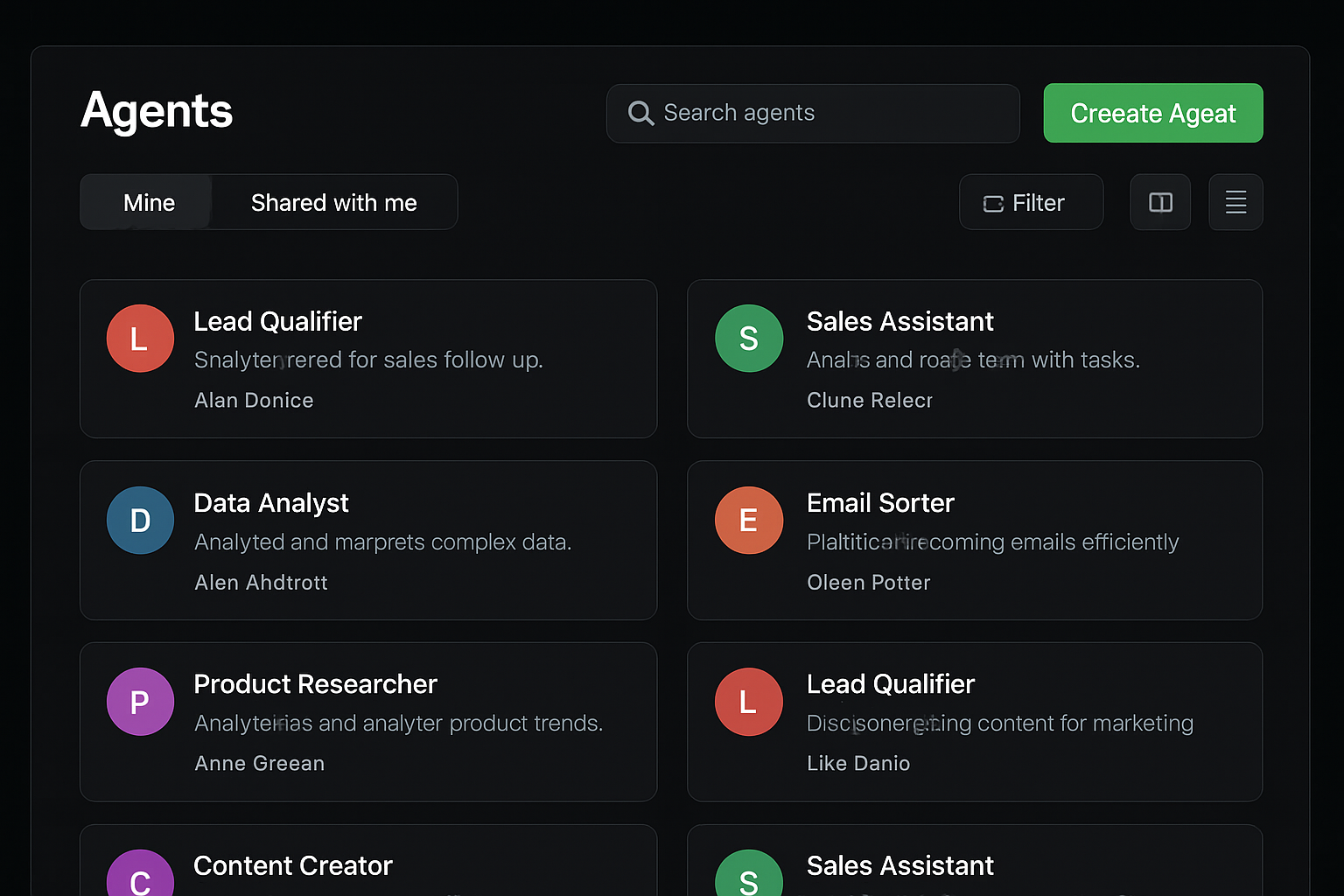
Select Agents in the left sidebar of your dashboard, or go directly to /user/agents.
From here you have two main paths:
- Create Agent — start a fresh agent with its own instructions, tools, and chat history
- Open an existing agent — continue a past conversation or start New chat inside that agent
From Chat
Open Chat (/user/chat) and @-mention an agent or invoke one by name when you need a specialized pipeline. Chat is best for one-offs; Agents keeps settings and history scoped to a role.
From an asset or file
Attach an image, PDF, or other file in the agent composer, or open a file in Space and continue the thread with that context — useful for “remix this ad” or “storyboard this deck.”
From AI Image Studio
After you generate a still, use Animate to move into video mode, or copy the prompt back into an Agent that has Image Generation enabled for a full campaign loop.
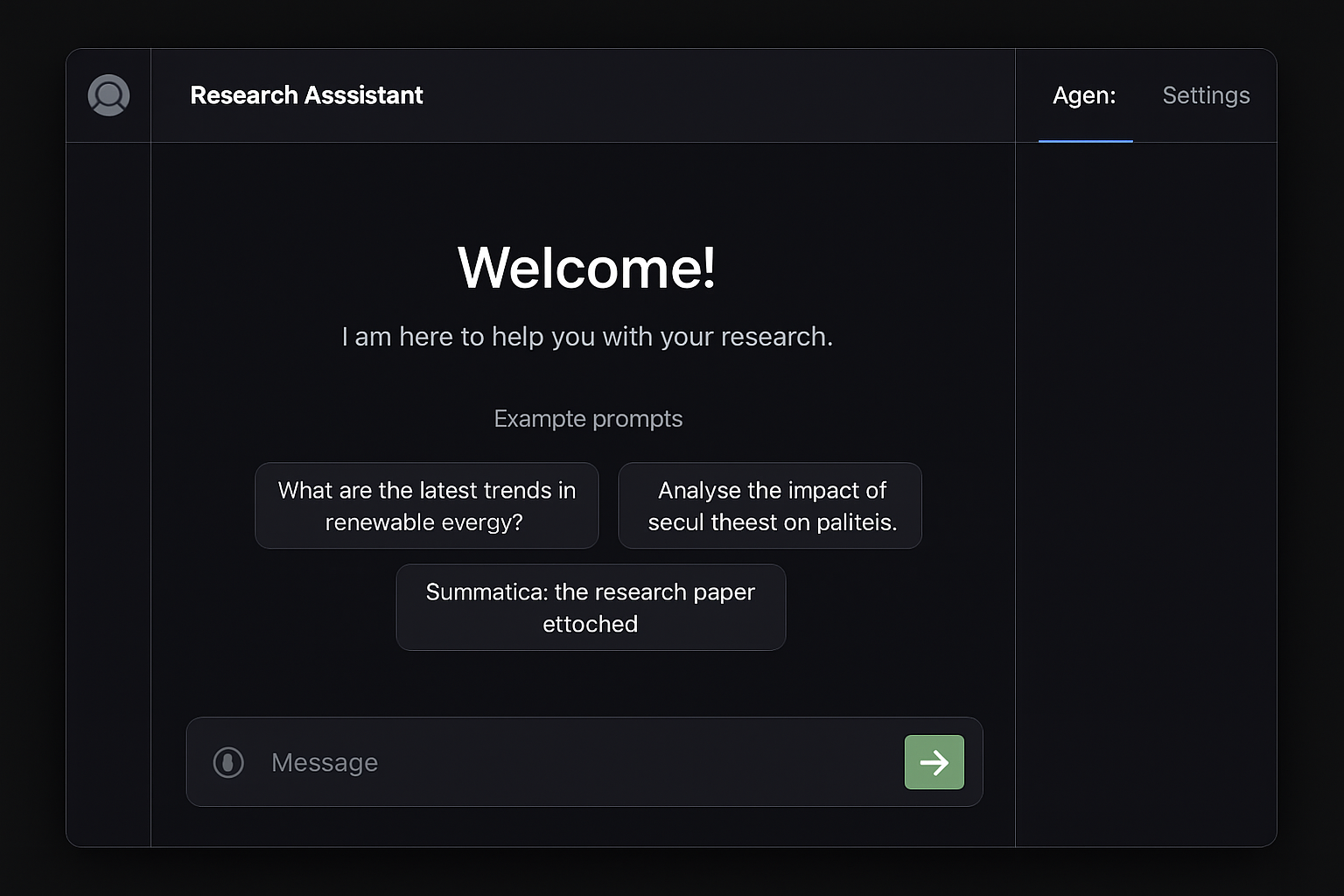
If you have used Agent before, you land on your most recent agent. To start fresh, click New chat in the agent header while keeping the same instructions and integrations.
Agent settings
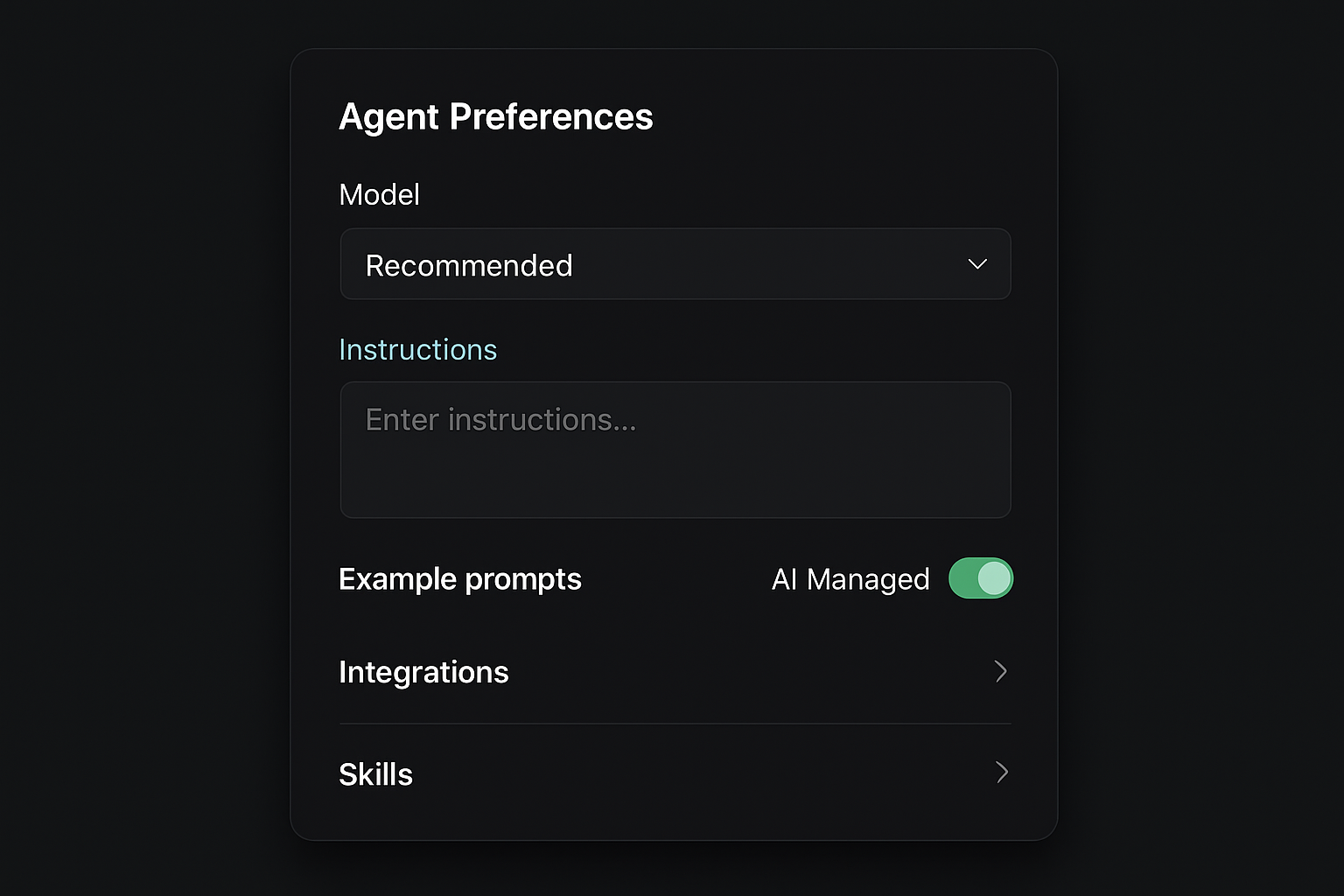
Before or during an Agent chat, configure how the agent picks tools and whether risky steps wait for you. These live in the Settings rail (right side) and in the composer footer.
Agent generations and tool runs use credits; costs vary by model and output type. See Understanding credit consumption for details.
Generation mode
Choose when Agent acts on your behalf:
| Setting | What happens |
|---|---|
| Ask before acting (default for side effects) | When the agent wants to send email, post to Slack, or run another destructive connector action, you see an approval card. Nothing sends until you confirm. |
| Automatic tool discovery | Tool Discovery: AUTO (composer footer) lets the agent pick connectors as needed. Switch to ON or OFF for stricter control. |
| Reflections | Under Settings → Reflections, choose Review so the agent proposes config changes for your approval, or Auto for low-risk self-updates. |
Save with Save in the rail. Edit the agent once to set defaults — every new chat under that agent inherits the same instructions.
Model selection
Use the model picker in the Agent rail to choose Recommended or a specific provider/model. Under Optimize for…, team policies may prefer speed, cost, or quality tiers. Agent uses a model capable of fulfilling your request even when a preference is set.
Enable Image Generation in abilities when you want in-chat stills via generate_image without leaving the thread, and Video Generation for clips via generate_video.
Step 2 – Prompting Agent
The prompt sets the creative foundation of what Agent produces.
- Click into the message box at the bottom of the chat panel
- Type a description of what you want to create in natural language
- Optionally attach images, PDFs, or other files
- Press Send
Think of your prompt as a simple description of where to start. A single clear sentence works well — Agent will ask for more details when it needs alignment before generating.
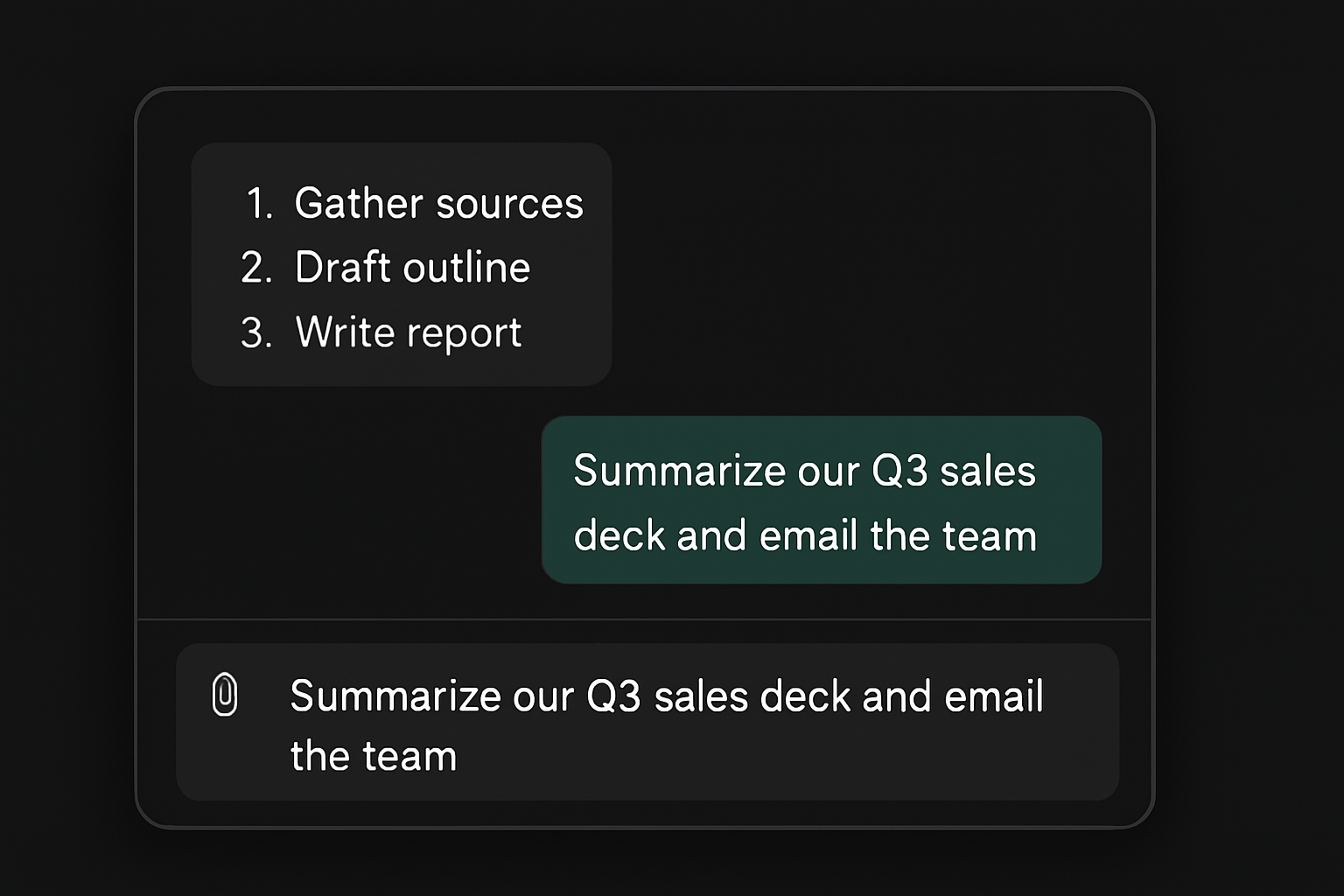
Example prompts
Some examples of initial prompts include, but are not limited to:
Marketing
- Help me find the strongest positioning for my product and build a campaign around it.
- Make three stronger variations of this ad to test.
- Look at my latest campaign notes and suggest new creative that builds on what is working.
- Break down why this ad works, then make my own version.
- Make a week of new content in the style of my recent posts.
- Localize my content for another market.
Film & narrative
- Create a multi-shot scene based on this character.
- Show me this character from different angles.
- Help me scout different scene ideas for this story.
- Storyboard a sequence for my idea.
- Create four color-grade variations of this shot as still images.
Social media
- Adapt my idea into different aspect ratios for social media.
- Create a week of posts for this month’s content calendar.
- Remix this trend with my product.
- Generate a thumbnail pack for my brand.
- Make a short vertical reel script, then generate the hero frame.
Educational content
- Create slides from my content.
- Explain this concept in images.
- Create a visual set for a lesson.
- Build an explainer outline on my topic with voiceover script copy.
Experimental art
- Explore one subject in many styles.
- Create a morph sequence plan with frame prompts.
- Make variations on a theme.
- Animate a still many ways — start with motion prompts only.
For hands-on image and video controls (model, duration, resolution), continue in Creating with AI Image and Creating with AI Video.
Step 3 – Reviewing and Refining with Agent
After you send your first message, Agent analyzes your request. It may ask questions, show a plan, or stream tool progress in the thread.
Review the plan and tell Agent whether you wish to:
- Proceed with generating, or
- Refine the concept before spending credits
If you are ready, reply that you like the plan. If changes are needed, give feedback in chat — “shorter hook,” “more cinematic lighting,” “9:16 instead of 16:9.”
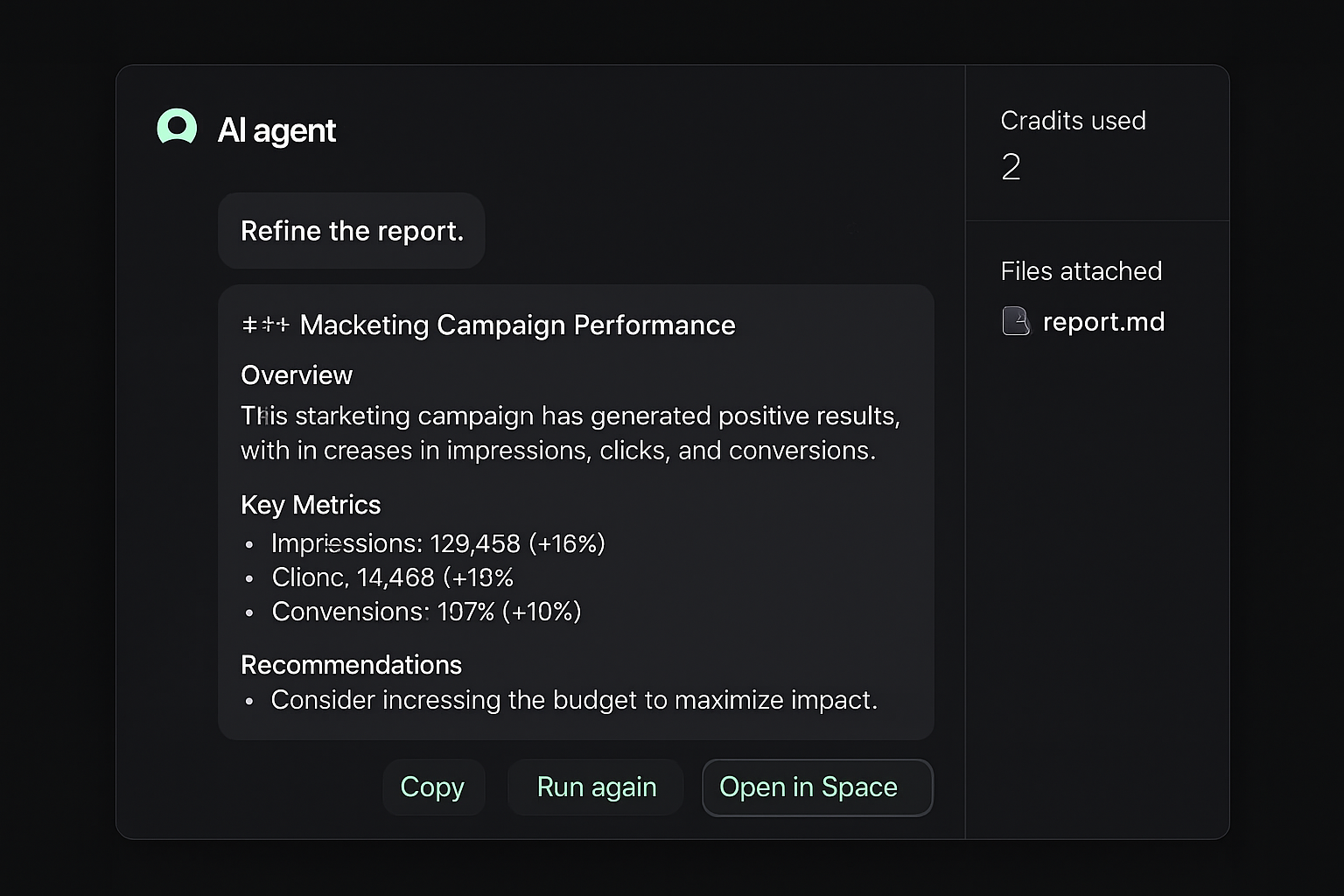
Everything Agent produces in a session stays in the chat thread. Use Chat Details in the right rail to see credits used and files touched. Open Space for downloads and reuse across projects.
To start over without losing configuration, use New chat from the agent header.
Step 4 – Video and longer cuts
Volnyn does not include Runway’s built-in timeline editor inside Agent. Use this workflow instead:
- Generate stills in Agent or AI Image Studio
- Animate each hero frame with a motion-only prompt (see Creating with AI Video)
- Chain clips — export the last frame of clip A as the first frame of clip B for continuity
- Assemble in your NLE (Premiere, CapCut, DaVinci) for final trim, music, and captions
For a single polished clip, set aspect ratio, duration, and resolution in the studio before you generate — changing platform (Reels vs YouTube) after the fact usually means a re-render.
Examples
Agent works across creative and business use cases.
| Use case | What you bring | What you ask | What Agent creates |
|---|---|---|---|
| Campaign creation | Product photo or brief | Tell me the strongest angles for this product and build a campaign around it. | Positioning, post copy, optional hero images |
| Ad testing | Existing ad creative | Build three stronger variations of this ad to test. | Variations + rationale |
| Film & narrative | Character reference | Create a multi-shot scene with this character across three locations. | Scene plan + frame prompts / stills |
| Performance analysis | Campaign notes or connector data | Analyze what is working and create new creative that builds on it. | Insights + new concepts |
| Social content | Brand guidelines | Make six days of social content in the style of my recent posts. Use 1:1 aspect ratio. | Calendar + captions + images |
Next steps
From here, take your output further:
- Creating with AI Image — batch variations, styles, and Library
- Creating with AI Video — Veo, Seedance, image-to-video, and chaining
- Start a new Agent session — return to
/user/agentsfor the next project - How are credits consumed for media? — plan spend before long sessions
FAQs
How long can Agent videos be?
Individual models cap clip length (often 4–20 seconds). Agent and AI Image Studio generate longer stories as separate clips. Chain them using last-frame handoff, then edit together externally.
What resolution and quality options are available?
AI Image Studio supports common aspect ratios and resolutions up to 1080p+ depending on model. Iterate at 720p to save credits, then regenerate your final at higher resolution if the model allows.
Which AI models does Agent use?
The model picker sets the chat brain. Image generation uses Volnyn’s image providers; video in the studio uses Veo, Seedance, Wan, LTX, Grok Imagine Video, and others from the model menu. Ask Agent for a specific look, or pick the model directly in AI Image Studio.
Do I need design or video editing skills?
No. Describe what you want in plain language and Agent produces drafts, images, and prompts you can refine. For pixel-perfect media, use AI Image Studio’s chips (model, ratio, duration) after Agent narrows the concept.
Are there limitations on conversation length?
Long sessions work, but very lengthy threads may slow down. Start New chat when you switch projects to keep responses sharp.
Is Agent different from Chat?
Chat is the general assistant. Agents are saved roles with their own instructions, tool allowlists, channels, and reflections — better for repeatable creative or ops workflows.
Can I generate images inside Agent?
Yes. Enable Image Generation in the agent’s abilities. For four-up variations, style presets, and Animate → video, use AI Image Studio.
Related guides
- Creating with AI Image
- Creating with AI Video
- Using connectors / integrations
- Understanding credit consumption
Still need help?
Open Get help in your account menu, or contact support from /user/support while signed in.