Most articles about the best free presentation software hand you a ranked list and move on. That's useful if you just want a name. It's less useful if you're staring at a blank prompt box wondering what to type, or you've already tried a tool and got three generic bullet points per slide instead of the deck you needed.
The right free presentation software depends on what you want to create. A traditional slide editor may be enough for a school assignment or a simple business deck. A free AI presentation maker can help when you need a first draft quickly, while a tool with stronger editing features may be better if you need precise control over every slide.
This guide explains how free presentation software works, what "free" actually covers, and how to create a usable presentation without paying unnecessarily. You'll also learn which features to check before choosing a free slide creator or AI PowerPoint generator.
What Does "Free" Actually Mean in Presentation Software?
"Free" rarely means unlimited. A presentation tool may offer a permanent free plan, a limited number of AI generations, or a free trial that expires after a set period.
Here are the main restrictions to check:
AI credits or generation limits: You may have a fixed number of AI-generated decks or slides per day or month.
Slide-count limits: The free plan may restrict how many slides you can create in a single presentation.
Watermarks: Exported files may include the provider's branding.
Export restrictions: You might be able to present online but need a paid plan to download an editable PowerPoint file.
Premium templates: Some layouts, fonts, animations, and design options may require payment.
Account requirements: A tool may require registration, even if it doesn't require a credit card.
Trial periods: A free trial is not the same as an ongoing free plan.
These restrictions don't automatically make a tool unsuitable. They simply define where its free tier stops.
Before creating your entire deck, check the plan's limits and test the export format you need. Volnyn's AI presentation maker lets you start creating presentations without a credit card. Check the current pricing page for the latest plan details rather than assuming every export or feature is unlimited.
What Can Free Presentation Software Do?
Free presentation software can help you build slides, organize information, apply templates, and present your ideas. Some tools focus on manual editing, while AI-powered options can generate a starting deck from a description or outline.
Traditional slide editors
A traditional presentation editor gives you direct control over slide layouts, text, images, charts, and formatting. This approach works well when you already know what to include and want to arrange each slide yourself.
Look for features such as:
Editable text boxes and slide layouts
Ready-made presentation templates
Image, chart, and shape support
Offline or browser-based editing, depending on the tool
PowerPoint or PDF export, if required
Free AI presentation makers
A free AI presentation maker can turn a topic, prompt, or outline into a structured slide deck. It may suggest slide titles, summarize information, and apply a visual layout.
An AI tool can save time when you're starting from scratch, but the first draft still needs review. It may miss important details, repeat ideas, or produce generic explanations if your prompt lacks context.
Free plans can also restrict generation attempts, premium templates, advanced customization, or export options. Check the actual limits before relying on an AI presentation generator for an important deadline.
Not all free presentation software works the same way. Some tools let you build slides manually, while others use AI to generate a complete presentation from a prompt. The right choice depends on whether you prioritize speed, design flexibility, collaboration, or control over the final PowerPoint file.
Here are four options worth comparing before choosing a free presentation tool.
1. Volnyn AI Presentation Maker — Best for AI-Generated Slide Decks
Volnyn AI Presentation Maker helps you create a presentation from a text description, topic, or outline. Instead of arranging every slide from scratch, you can start with an AI-generated deck and then refine its content and design.
Key features:
Generates a presentation from a text prompt or supplied outline.
Creates a structured deck with slide titles, content, and visual layouts.
Lets you edit generated slides, including text, layouts, colors, and images.
Offers a free starting option without requiring a credit card.
Free-plan limitations: Volnyn's public pricing page describes a free default plan whose features depend on the main application's credits. It does not clearly specify a separate presentation-generation allowance or every presentation export restriction. Check the current pricing details and test your required export format before creating a large deck.
Best for: Students, professionals, marketers, and business owners who want an AI-generated first draft instead of manually creating every slide.
2. Google Slides — Best for Collaboration and Manual Editing
Google Slides is a browser-based presentation editor that lets users create slides, apply templates, and collaborate with other people. Anyone with a Google Account can create presentations, although some advanced features require a paid Google Workspace plan.
Key features:
Create and edit slides in a browser.
Collaborate with others and leave comments.
Use presentation templates, animations, and transitions.
Work with Microsoft PowerPoint files.
Free-plan limitations: Google Slides is primarily a manual editing tool rather than a dedicated AI presentation generator. Some advanced recording and AI features require eligible paid plans or add-ons.
Best for: Students, teachers, teams, and anyone who wants to edit presentations collaboratively without relying on AI to generate the entire deck.
3. Canva — Best for Visual Templates and Design Flexibility
Canva is a visual design platform with presentation templates, a drag-and-drop editor, and a library of design assets. Its free plan includes a range of templates and design resources, making it useful for creating visually engaging slides.
Key features:
Ready-made presentation templates.
Drag-and-drop editing for text, images, shapes, and other elements.
Visual design resources for educational and business presentations.
Export options including PDF, JPG, and PNG.
Free-plan limitations: Some templates, stock assets, and advanced design or AI features require payment. Check whether individual elements are available on the free plan before using them in your final deck.
Best for: Users who care about visual design and want to customize slides using templates rather than generate the whole presentation through AI.
4. Gamma — Best for Quick AI-Assisted Presentations
Gamma is an AI-powered tool for generating presentations and other content from prompts. Its free plan includes 400 initial AI credits and allows up to 10 slides per prompt. It also supports importing PDF and PPTX files and exporting presentations to PDF, PPTX, PNG, and Google Slides.
Key features:
Generates a presentation from a prompt.
Creates up to 10 slides per prompt on the free plan.
Supports PDF and PowerPoint imports.
Offers PDF, PPTX, PNG, and Google Slides export options.
Free-plan limitations: The initial AI credits do not automatically refresh on the free plan. Free exports also include Gamma branding, so check the output if you need a presentation without a watermark.
Best for: Users who want to generate a short presentation quickly and are comfortable working within a limited AI-credit allowance.
Free Presentation Software Comparison Table
| Feature | Volnyn | Google Slides | Canva | Gamma |
|---|
| Main approach | AI-generated decks | Manual editing | Template-based design | AI-generated decks |
| AI presentation generation | Yes | Not its main free-plan focus | AI features available with usage limits | Yes |
| Manual editing | Yes | Yes | Yes | Yes |
| Collaboration | Verify the features available to your account | Strong collaboration features | Sharing and collaboration options | Sharing and collaboration options |
| Free-plan limits | Main-app credits; presentation-specific allowance needs checking | Some advanced features require paid plans | Some assets and features are paid | 400 initial AI credits; up to 10 slides per prompt |
| Export options | Check available formats in your account | PowerPoint-compatible workflows | PDF, JPG, PNG, and other supported formats | PDF, PPTX, PNG, and Google Slides |
| Watermark or branding | Verify current export terms | Depends on content and workflow | Depends on assets and features used | Gamma branding on free exports |
| Best use case | Creating an editable AI-generated first draft | Collaborative slide editing | Designing visually polished slides | Rapid AI-assisted slide creation |
Comparison based on the providers' published information reviewed for this article. Features, credit allowances, and plan restrictions can change. Check each provider's current plan before relying on a specific feature.
Which Free Presentation Software Should You Choose?
Choose according to your main requirement rather than simply selecting the tool with the most features.
Choose Volnyn if you want to generate a presentation from a prompt and then edit the slides. It is a useful starting point if you also want to explore other AI creation tools on the same platform.
Choose Google Slides if collaboration, straightforward editing, and working with PowerPoint files are your priorities.
Choose Canva if you prefer visual templates and hands-on design customization.
Choose Gamma if you want to generate a short presentation quickly and its free AI-credit limit meets your needs.
If you are unsure, create a small test deck with your actual topic. Review the slide quality, edit a few elements, and export the result before committing to a tool for a longer presentation.
For a prompt-based workflow, you can start with Volnyn's AI presentation maker and check the available features on your account before building the full deck.
How to Choose the Best Free Presentation Software
The best tool is the one that meets your actual requirements without forcing you to pay for features you don't need.
Use this checklist before signing up.
| What to check | Why it matters |
|---|
| Free plan or free trial | A permanent free plan may suit regular use better than a trial that expires. |
| PowerPoint export | Check whether you can download an editable PPTX file. |
| PDF export | Important for sharing, printing, and submitting assignments. |
| Watermarks | Confirm whether exported slides include platform branding. |
| AI credits | Check how many generations or edits your allowance covers. |
| Slide limits | Make sure the plan supports the length of your presentation. |
| Templates and editing | Confirm you can change text, layouts, colors, and images as needed. |
| Account and payment requirements | Check whether registration or payment details are required. |
| Branding and collaboration | Useful for businesses, teams, and recurring client presentations. |
Don't judge a free presentation tool by its template gallery alone. A tool with attractive designs may still be a poor fit if it cannot export the file you need.
Step-by-Step: Creating a Presentation With a Free AI Tool
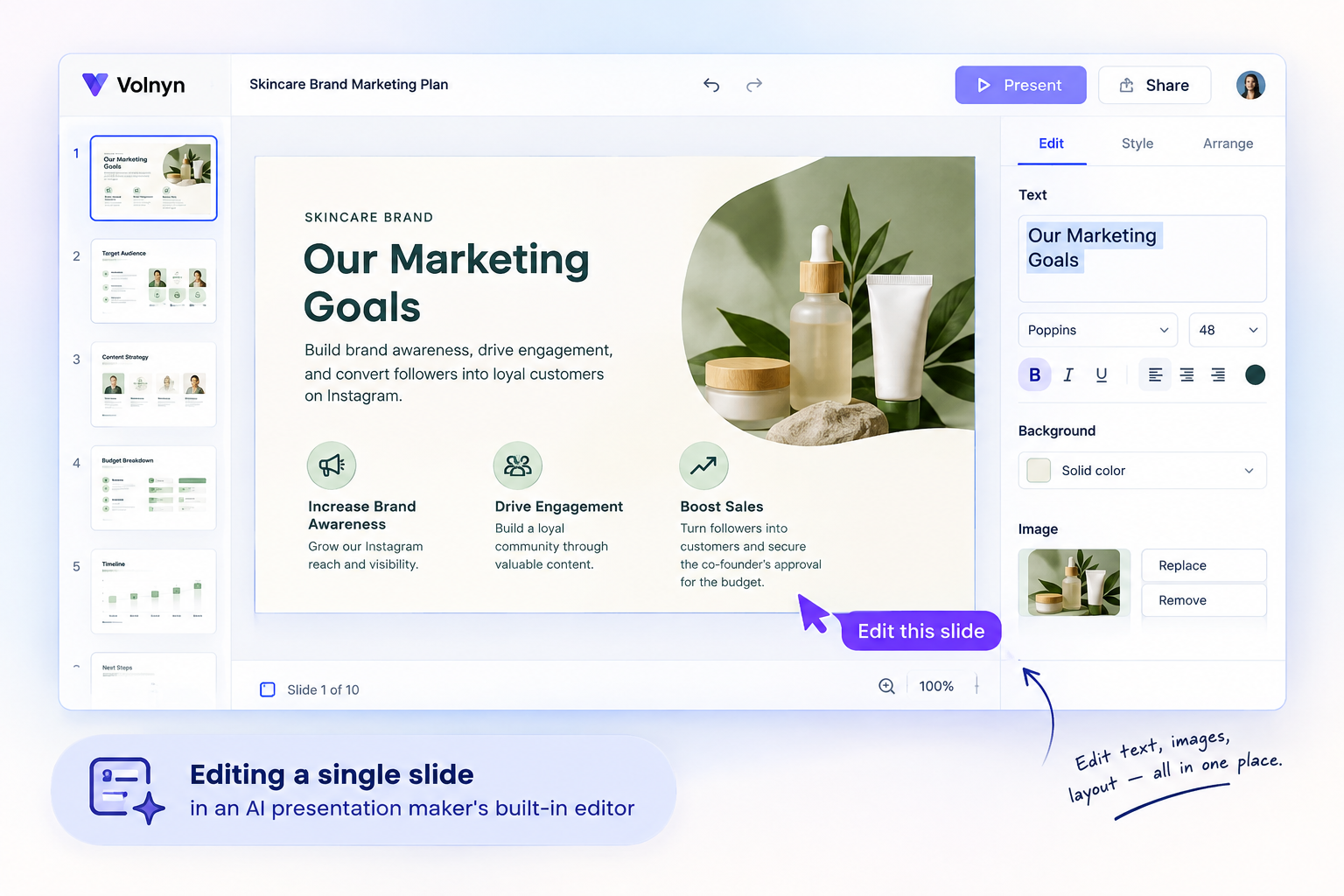 The basic workflow is similar across many AI presentation tools. Here's how to approach it using Volnyn's AI slides as the walkthrough example.
Step 1: Describe the deck, not just the topic
Don't type "marketing presentation." Instead, try:
"A 10-slide marketing plan for a small skincare brand launching on Instagram. The audience is the co-founder, and the goal is to explain the launch strategy, expected costs, content plan, and next steps."
The audience, goal, and length help the AI produce a more relevant first draft.
Step 2: Review the presentation structure
Check whether the deck has a clear opening, a logical flow of ideas, and a useful conclusion.
A business presentation might cover the problem, proposed solution, plan, resources, and next steps. An educational presentation might introduce a topic, explain its main concepts, and finish with a summary.
Don't assume the generated structure is correct just because the slides look polished.
Step 3: Edit before regenerating
Read each slide and correct vague wording, factual errors, repeated points, and unsupported claims.
If only one slide needs improvement, edit that slide directly or use a single-slide regeneration feature if the tool supports it. You may avoid wasting your limited free AI credits on a deck that is already mostly right.
Step 4: Check the visuals
Make sure the text is readable, the layouts are consistent, and the images or charts support the message.
Replace generic visuals when a specific illustration, product image, or accurate chart is important to the presentation.
Step 5: Export in the format you need
If you need an editable PowerPoint file, confirm that PPTX export is available on your plan. If you only need to share or print the slides, PDF may be sufficient.
Test the export before an important presentation. Formatting can change when a deck moves between platforms.
Prompt Tips That Make Every Free AI Generation Count
When a free plan limits how often you can generate a deck, a specific prompt can save time and reduce unnecessary regeneration.
State the goal, not just the subject. "Convince investors" and "train new employees" require different presentation structures.
Name the audience. Executives, students, customers, and colleagues need different levels of detail.
Set the slide count. Specify whether you need 5, 10, or 18 slides.
Provide your source material. Include notes, an outline, key numbers, or approved facts so the AI can work from your actual content.
Describe the visual style. Request a clean business design, a classroom-friendly layout, or another style appropriate to your audience.
Identify essential points. Tell the tool which information must not be omitted.
Review before regenerating. Fix small problems manually instead of rebuilding the entire deck.
Example prompt for a free AI PowerPoint generator
"Create a 10-slide presentation for college students explaining the basics of digital marketing. Use simple language, include examples of SEO, social media, and email marketing, and organize the slides from introductory concepts to practical applications. Use clear headings, concise bullet points, and a consistent visual style. Finish with a summary of the main lessons."
Treat the generated presentation as a draft. Verify facts and edit the slides before using them.
Getting More Out of a Free Plan
A few practical methods can help you work within free-tier limits:
Split large decks into smaller sections. Two focused 10-slide generations may be easier to manage than one broad 20-slide request. You will need to combine and review them afterward.
Bring your own visuals. Add the correct chart, product image, or illustration manually when accuracy matters.
Choose a tool for your main requirement. If you need a quick draft, prioritize useful AI generation. If you need detailed formatting, prioritize editing and export controls.
Keep a copy of your source material. Save your outline, notes, and key data separately so you can rebuild the presentation if necessary.
Test exports early. Don't wait until the deadline to discover that a file format or feature requires payment.
Free Presentation Software for Different Needs
Different users need different features. Use your main task to narrow down the options.
For students and teachers
Look for readable templates, simple editing, and reliable PDF or PowerPoint exports. An AI presentation tool can help organize lecture notes or assignment material, but verify the information and follow your institution's rules for AI-assisted work.
For businesses and freelancers
Prioritize consistent branding, editable layouts, charts, and the ability to share or export presentations. If you regularly create client proposals, check whether the free plan supports your workflow before building it around that tool.
For churches and community groups
A useful presentation tool should make text easy to read from a distance and support the images, song lyrics, announcements, or lesson materials you need. Check export and display options before preparing a service or event.
For video presentations
If you need a video presentation rather than a standard slide deck, check whether the tool supports animation, narration, video export, or recording. A free slide creator does not necessarily include these features, and some may require a separate video editor.
For turning documents into slides
If you already have a Word document, PDF, or a set of notes, look for a tool that accepts pasted text or file input. This can save you from retyping your material.
Volnyn's AI presentation maker can work from a description or supplied outline. Review the generated slides to make sure the original points remain accurate and complete.
Common Free-Tier Problems and How to Fix Them
Generic slides: Add the intended audience, purpose, examples, and key facts to your prompt.
Running out of AI credits: Plan the structure before generating and edit small issues manually.
Watermarked exports: Check the export terms before choosing the tool for a final deliverable.
PowerPoint export unavailable: Confirm PPTX support before creating a long deck. A PDF or browser presentation may not meet your requirements.
Formatting problems: Export a test file early and inspect it in the application where you intend to present it.
Repeated or inaccurate content: Review the slides individually and compare important claims with your source material.
Limited customization: Check whether you can adjust fonts, colors, layouts, and branding before committing to a design.
Where Volnyn Fits
If your priority is a fast first draft, Volnyn's AI presentation maker is one option to try. Its presentation workflow generates a deck from a description and allows you to refine the result. The service also offers other AI creation tools within the Volnyn platform.
Starting without a credit card can make it easier to test the workflow before deciding whether it fits your needs. However, check the current pricing page for plan restrictions and confirm the export format you need.
If your priority is a specialized feature, such as a zooming, non-linear canvas or extensive team branding controls, another platform may be a better fit. Our comparison of leading AI presentation makers explains how different tools approach presentation creation.
Free vs. Paid Presentation Software: When Should You Upgrade?
Paying makes sense when you repeatedly encounter a limitation that affects your work.
Consider upgrading if:
You need watermark-free exports regularly.
Your presentation volume exceeds the free generation allowance.
You need advanced templates or consistent team branding.
You require specific export or collaboration features that aren't included in the free plan.
Manual workarounds take more time than a paid plan would save.
If you create only occasional school assignments, internal updates, or simple slide decks, a free plan may be enough. Decide based on the features you actually use, not the number of premium features a provider advertises.
Frequently Asked Questions
Is there genuinely free presentation software?
Yes. Some providers offer ongoing free plans, while others offer only a free trial or a limited number of free features. Check whether the plan supports your required slide count, editing tools, and export format.
What is the best free AI presentation maker?
There is no single best choice for everyone. Compare the quality of the generated draft, editing controls, export options, watermark policy, and free usage limits. Test a small presentation before committing to a tool.
Can I create a PowerPoint presentation for free?
Yes, provided the software you choose allows you to create and export the presentation without requiring payment for those features. Confirm that editable PPTX downloads are included in the free plan if you need to edit the file in Microsoft PowerPoint.
Can I turn a PDF or Word document into a presentation for free?
Some tools accept uploaded documents, while others work with pasted text or outlines. Check the supported input formats and any usage restrictions. Always compare the generated slides with your source document to avoid missing details.
Do free presentation makers add watermarks?
Some do, while others restrict generations, templates, or export formats instead. The policy varies by provider and plan, so check the current terms before creating your final deck.
Can I make an animated or video presentation for free?
Possibly, but not every slide editor supports animation, narration, recording, or video export on its free plan. Check these specific features if you need a finished video rather than a conventional slideshow.
How many presentations can I generate for free?
There is no universal limit. Some tools use daily or monthly AI credits, while others limit features or offer a trial period. Check the current plan details because allowances can change.
Final Recommendation
Start with a free presentation tool that lets you test the complete workflow: create a draft, edit the slides, and export the finished file. Check the limitations before investing time in a large deck.
If you want to generate a first draft from a description or outline, try Volnyn's AI presentation maker. If you need a specialized presentation feature, compare the alternatives before choosing.
The best free presentation software is not necessarily the one with the most templates or AI features. It is the one that helps you create a clear, accurate, useful presentation and deliver it in the format you need.